Sangeet Notation
Sangeet Notation Guide
A complete walkthrough of every feature. Learn how to create, edit, play, and share Sangeet compositions using the Bhatkhande notation system.
Getting Started
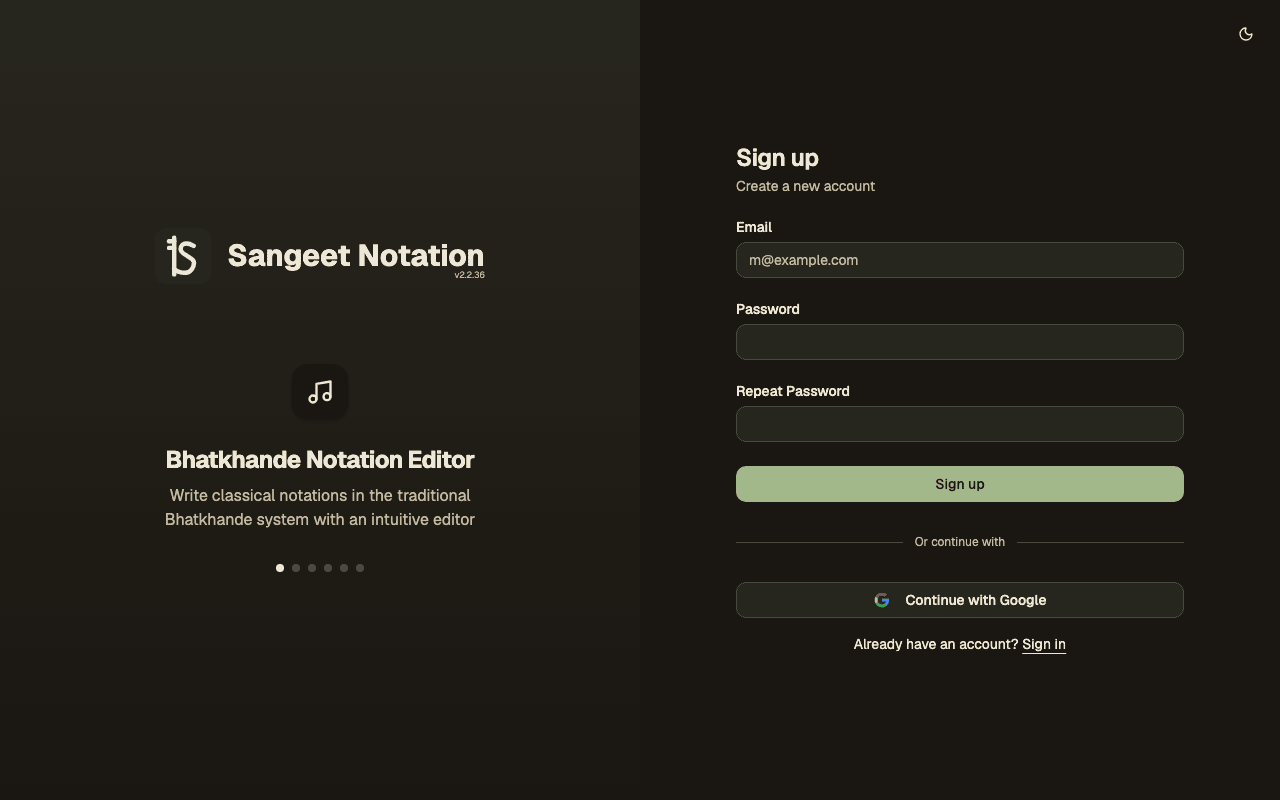
Create a free account to start writing Sangeet notations in the Bhatkhande system.
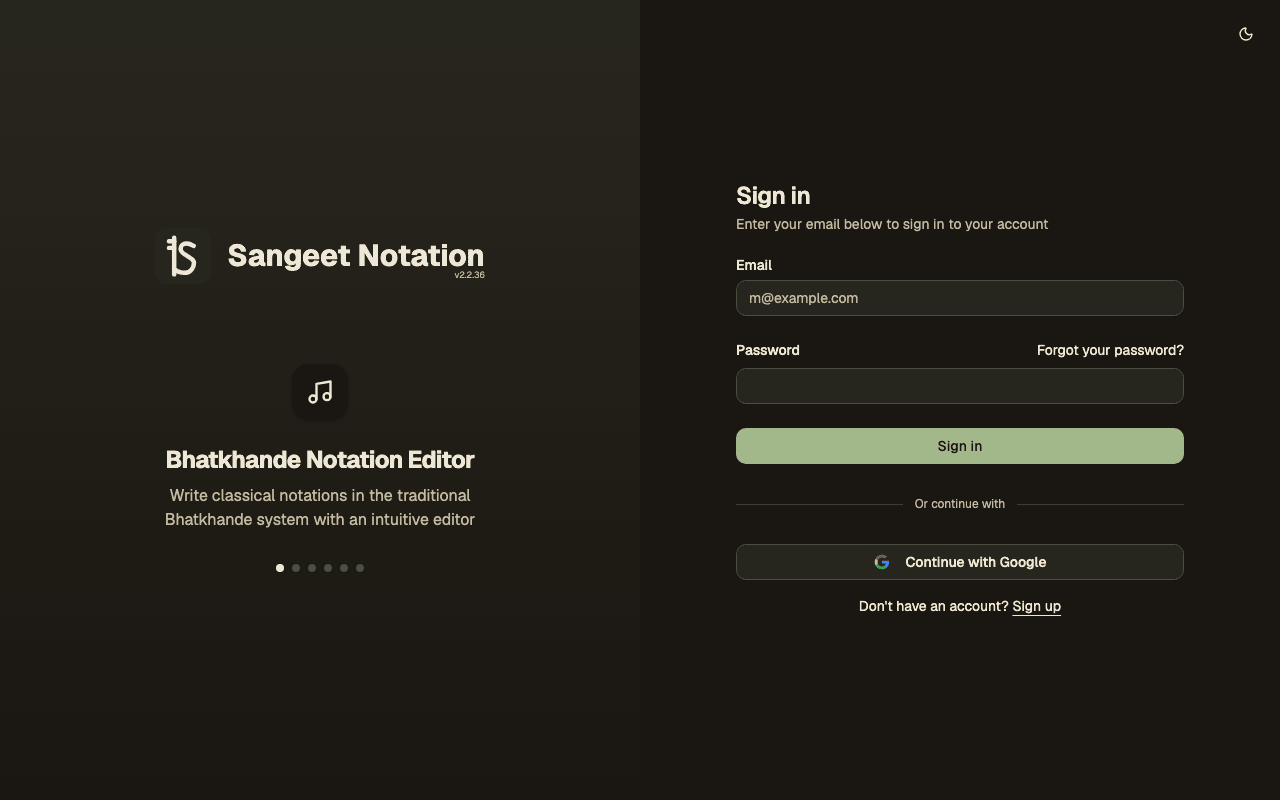
Email & Password
Sign up with your email address and a password. You'll be ready to go in seconds.
Google Sign-In
Use your Google account for one-click sign-in. No extra password to remember.
Forgot Password
Reset your password anytime via the "Forgot your password?" link on the sign-in page.
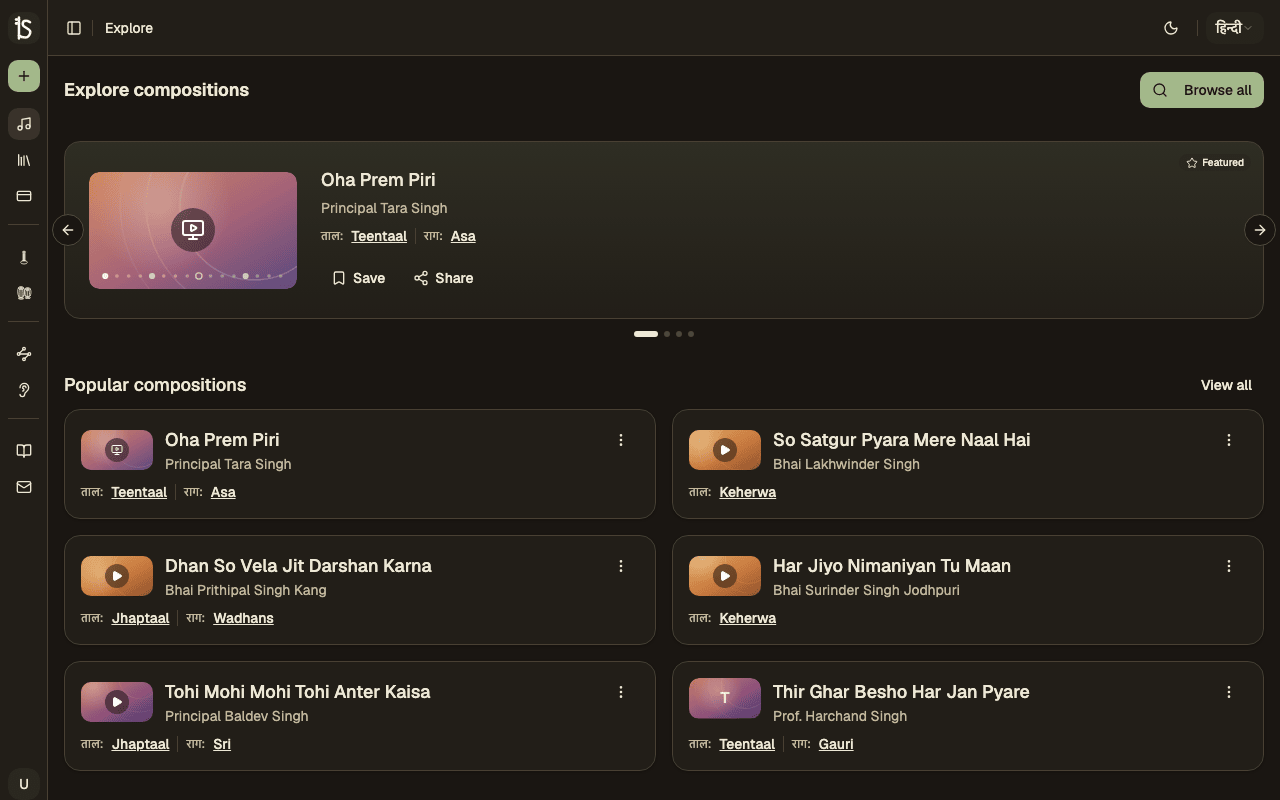
Discover & Browse
Find Sangeet compositions shared by the community, or search for specific songs to notate.
Search
Search for compositions by name, singer, raag, or taal. Find exactly what you need quickly.
Popular Compositions
Browse the most popular compositions shared by the community. A great place to find well-known pieces.
Top Contributors
Discover prolific contributors and explore their composition libraries for high-quality notations.
Search Compositions
Browse and search all public Sangeet compositions with powerful filters.
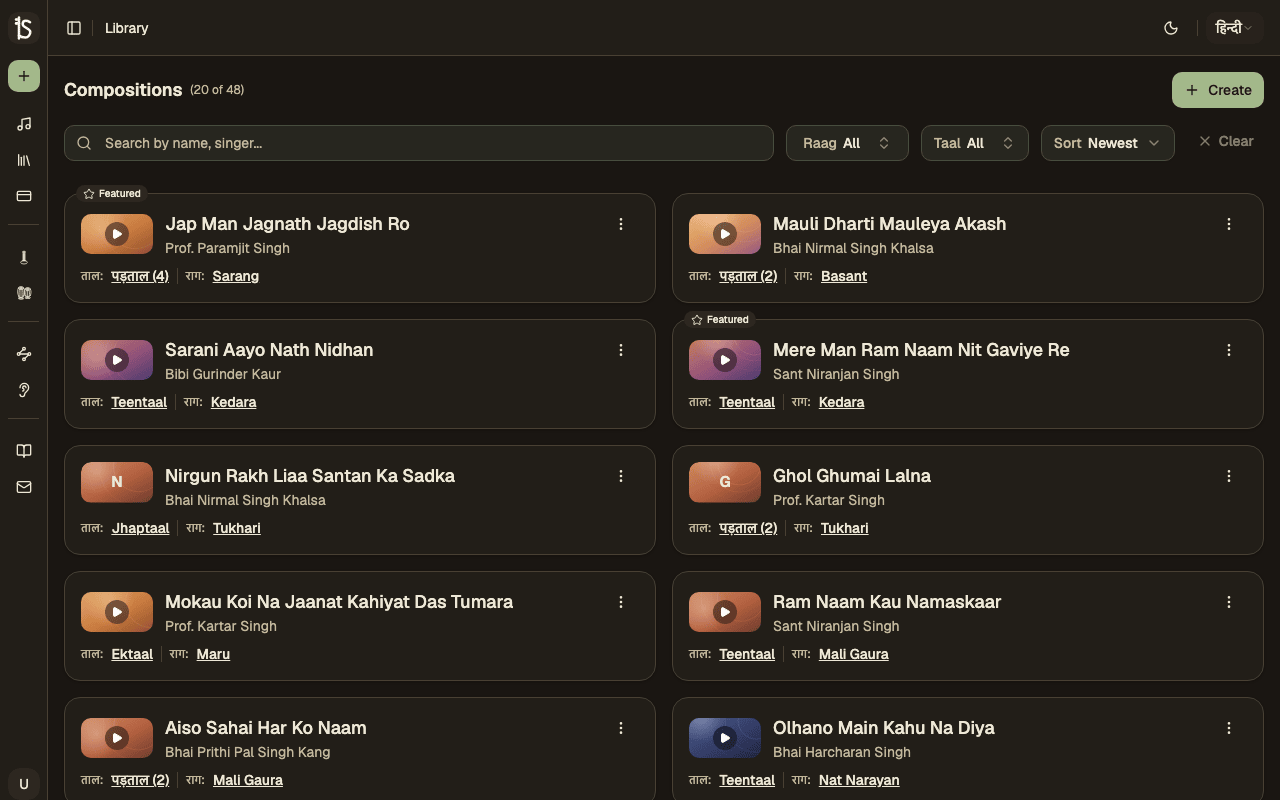
Text Search
Search by composition name, singer, or keywords. Results update as you type.
Raag & Taal Filters
Filter compositions by specific raga or taal. Combine filters to narrow down results.
Browse Results
View matching compositions with raga, taal, and singer details. Click any composition to open it.
Search Filters
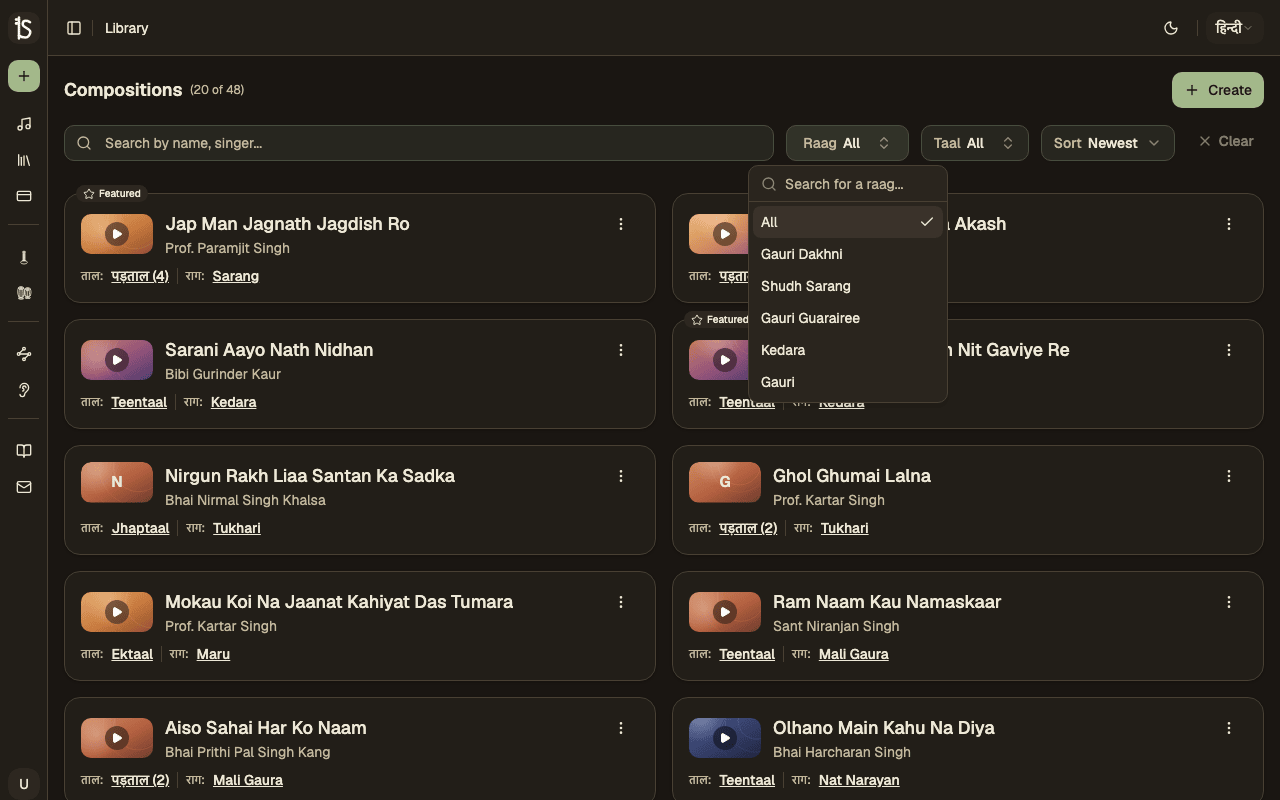
Raag Info
Learn about any raag — view its aaroh, avaroh, pakad, and more directly from the composition list.
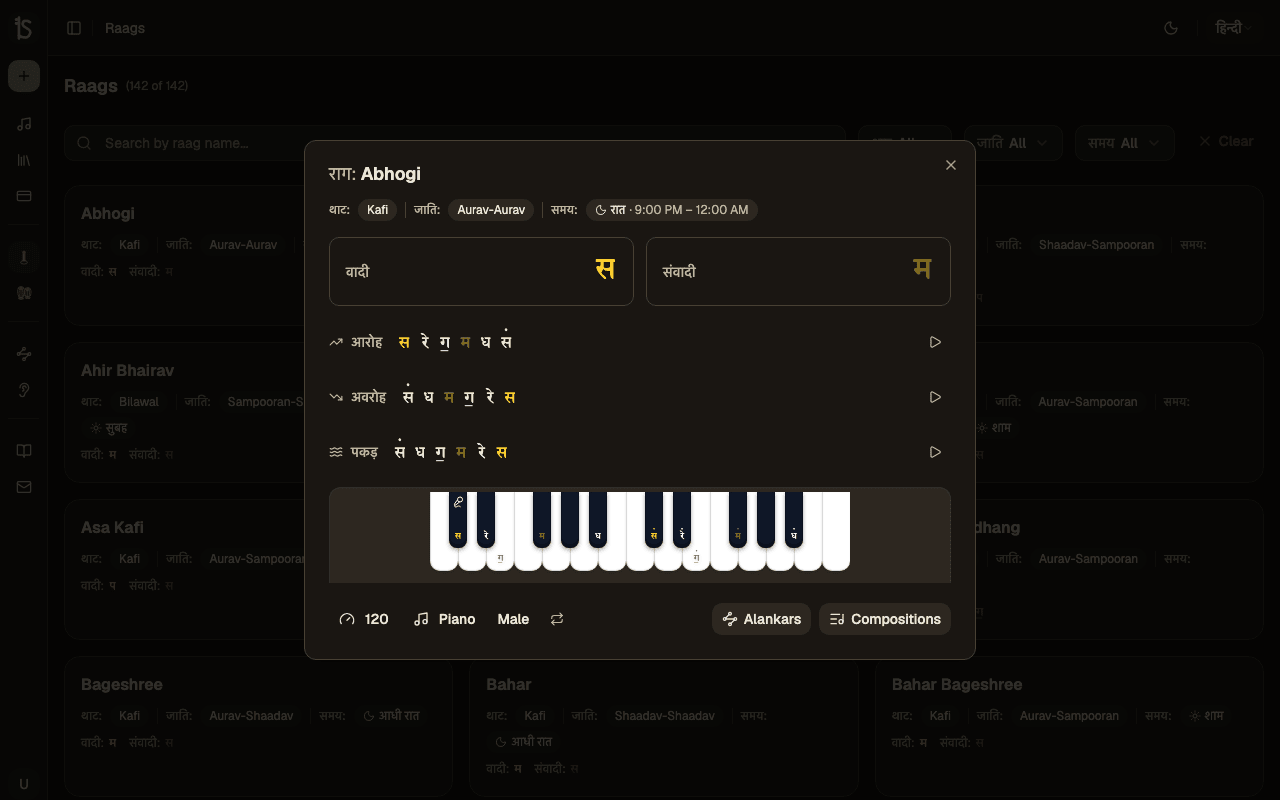
Click on any raag name displayed in a composition card or on the view page to open the Raag Info modal. The modal shows detailed information about the raag including its aaroh (ascending scale), avaroh (descending scale), pakad (characteristic phrase), vadi, samvadi, and more.
Raags & Taals Reference
Browse the full library of raags and taals from the sidebar — searchable reference pages open to everyone.
Raags
The Raags page lists every raag with its details. Search by name to jump straight to the one you want, then open it to see its notes and related compositions.
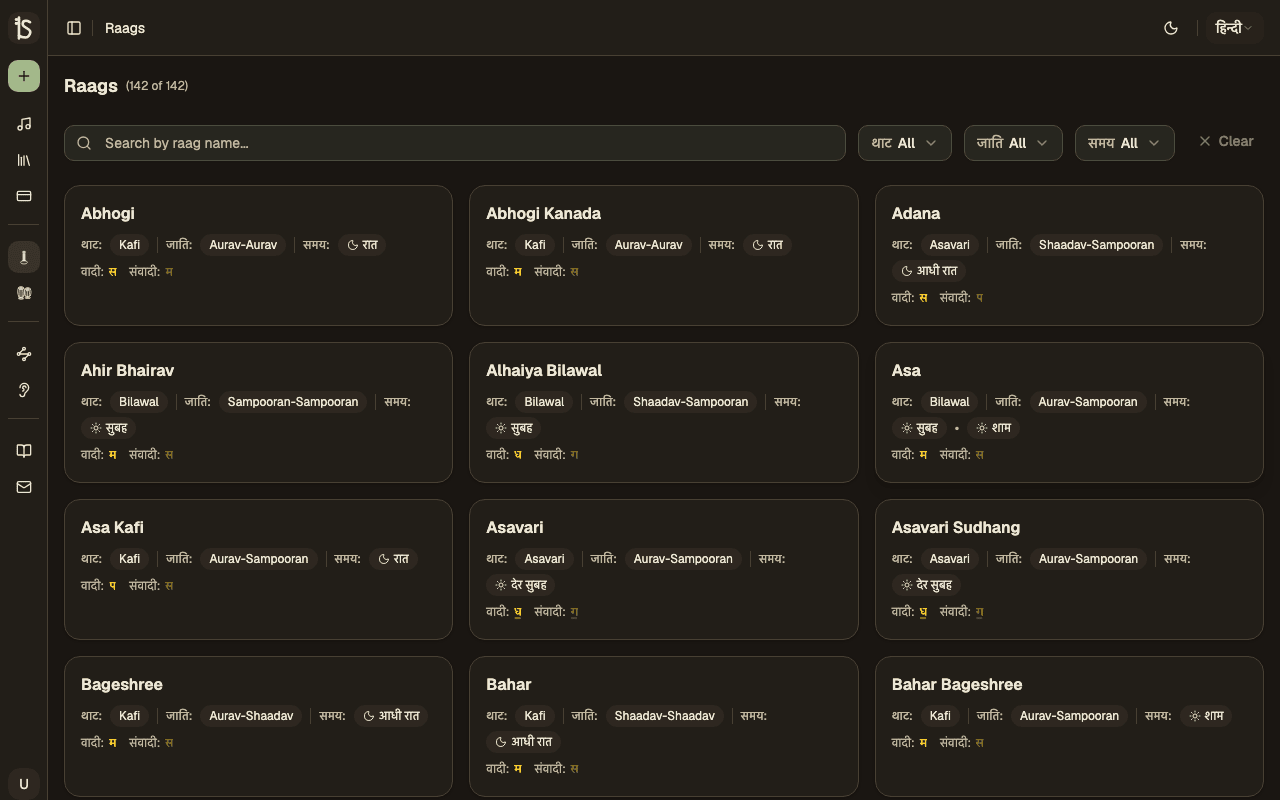
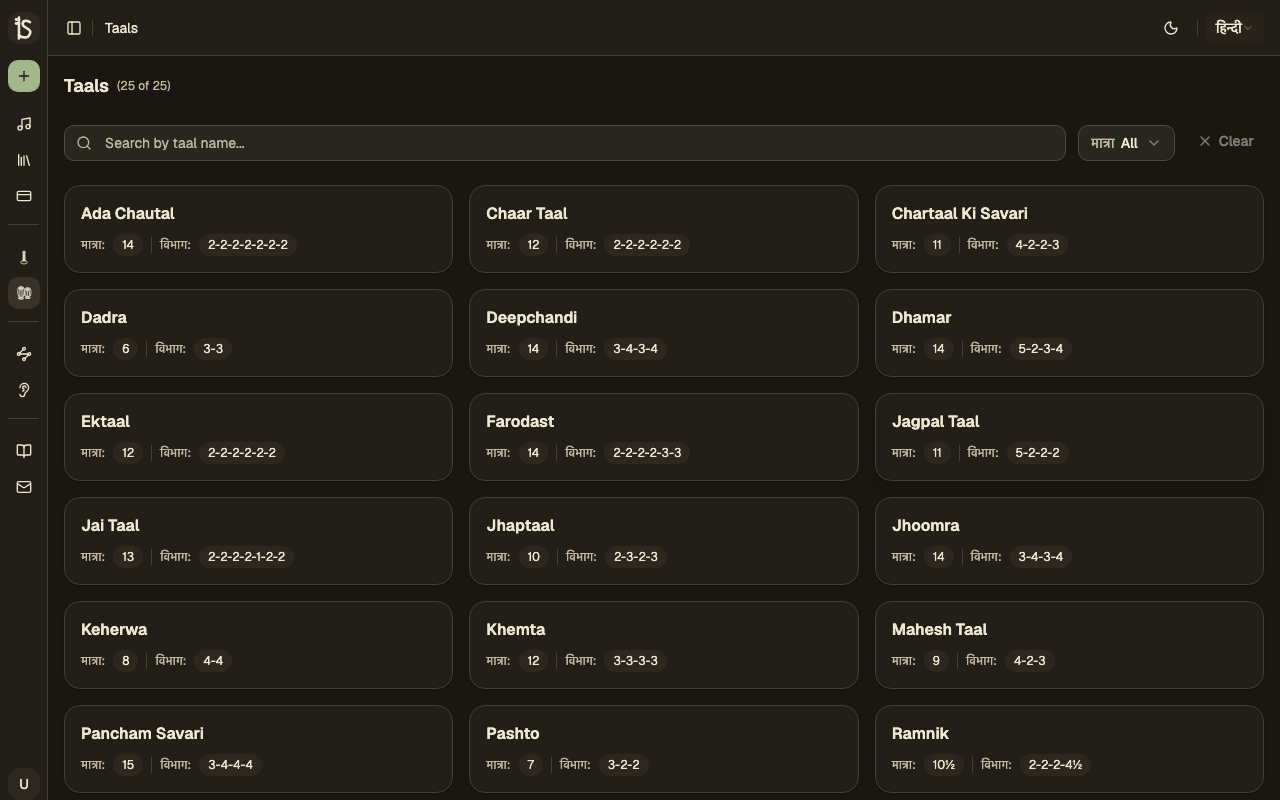
Taals
The Taals page covers the rhythmic cycles — their beat count, vibhags, and clap pattern — so you can look up any taal while reading or writing a composition.
Open to Everyone
Both reference pages are available without an account, so you can explore the raag and taal library before you sign up.
User Profiles
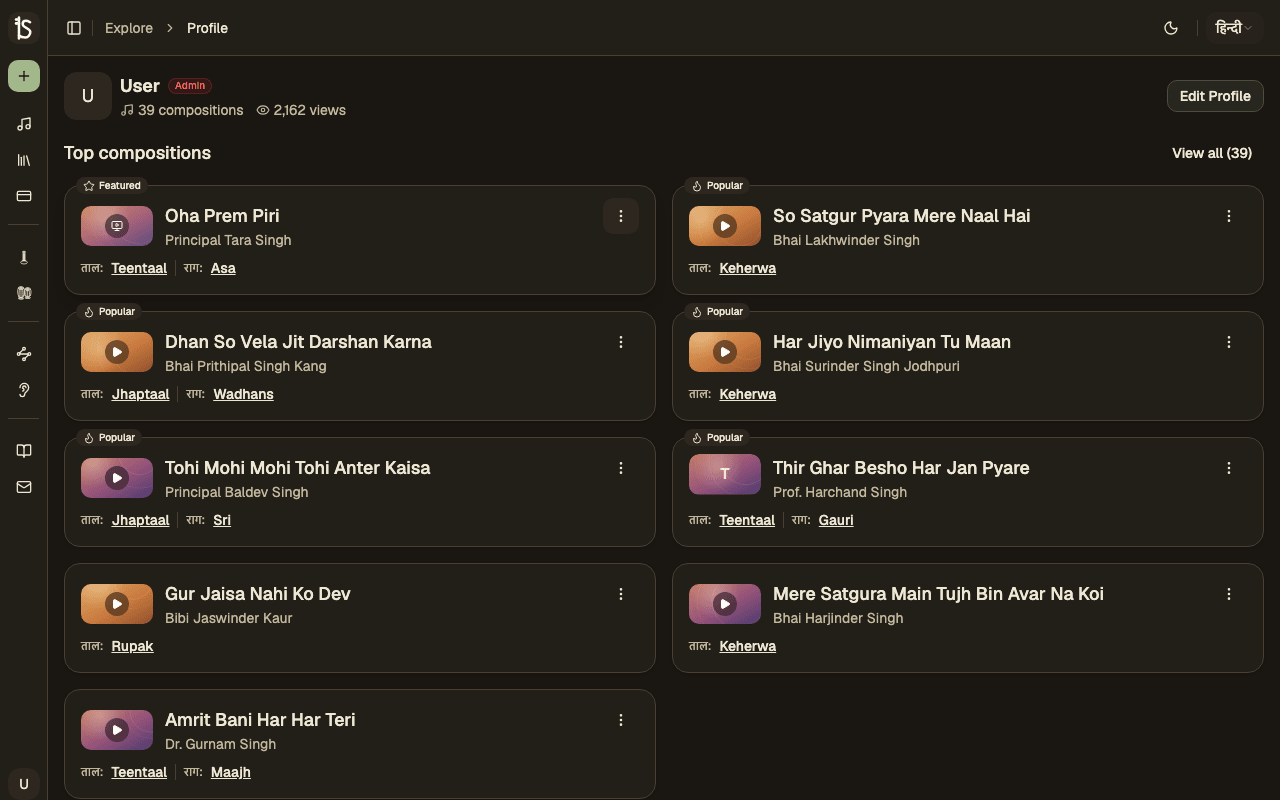
View contributor profiles with their compositions, stats, and musical preferences.
Compositions
Browse all public compositions by a contributor. See their complete library of notations.
Stats & Views
View the contributor's total compositions and view counts to find prolific and popular contributors.
Raag & Taal Badges
See which ragas and taals a contributor composes in most. Helps find specialists in specific musical traditions.
Save for Later
Bookmark compositions to your personal library for quick access anytime.
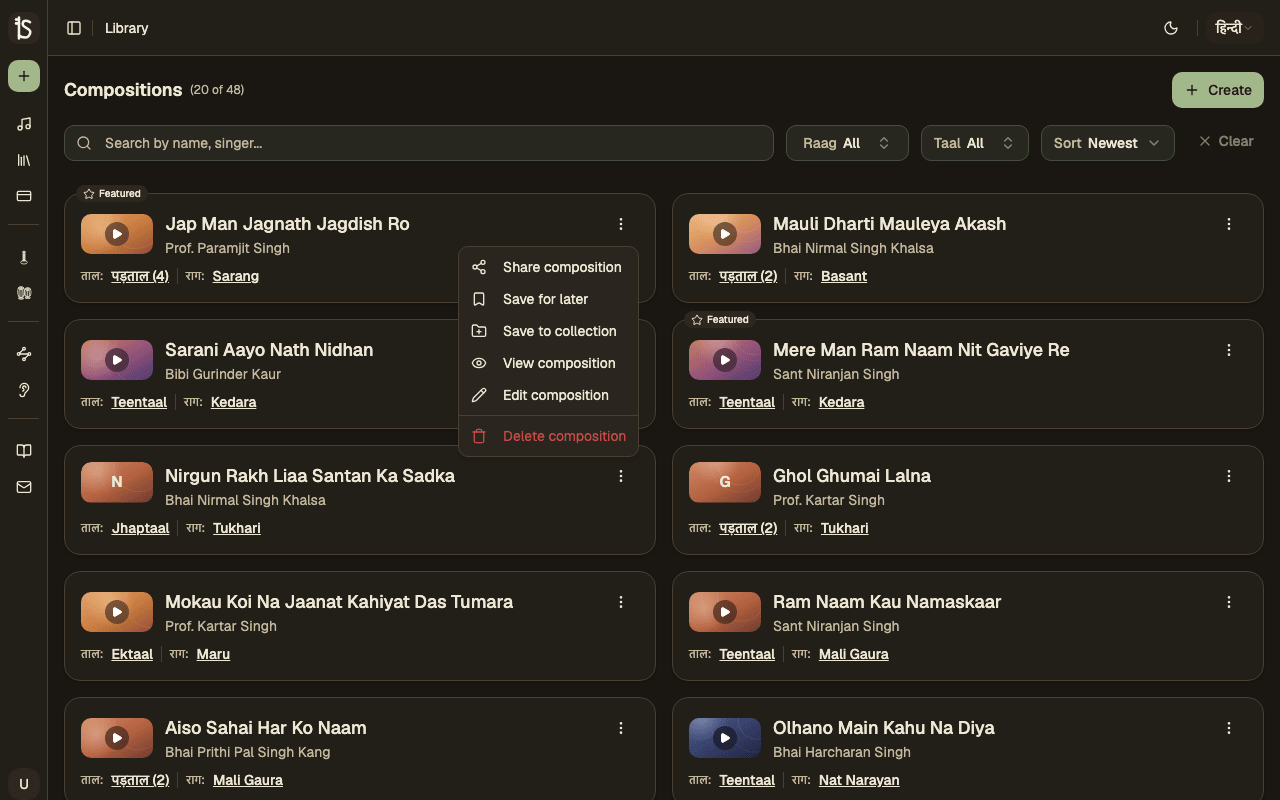
Found a composition you want to come back to? Use the "Save for Later" option from the actions menu on any composition. Saved compositions appear in your dedicated Saved Compositions page for easy access.
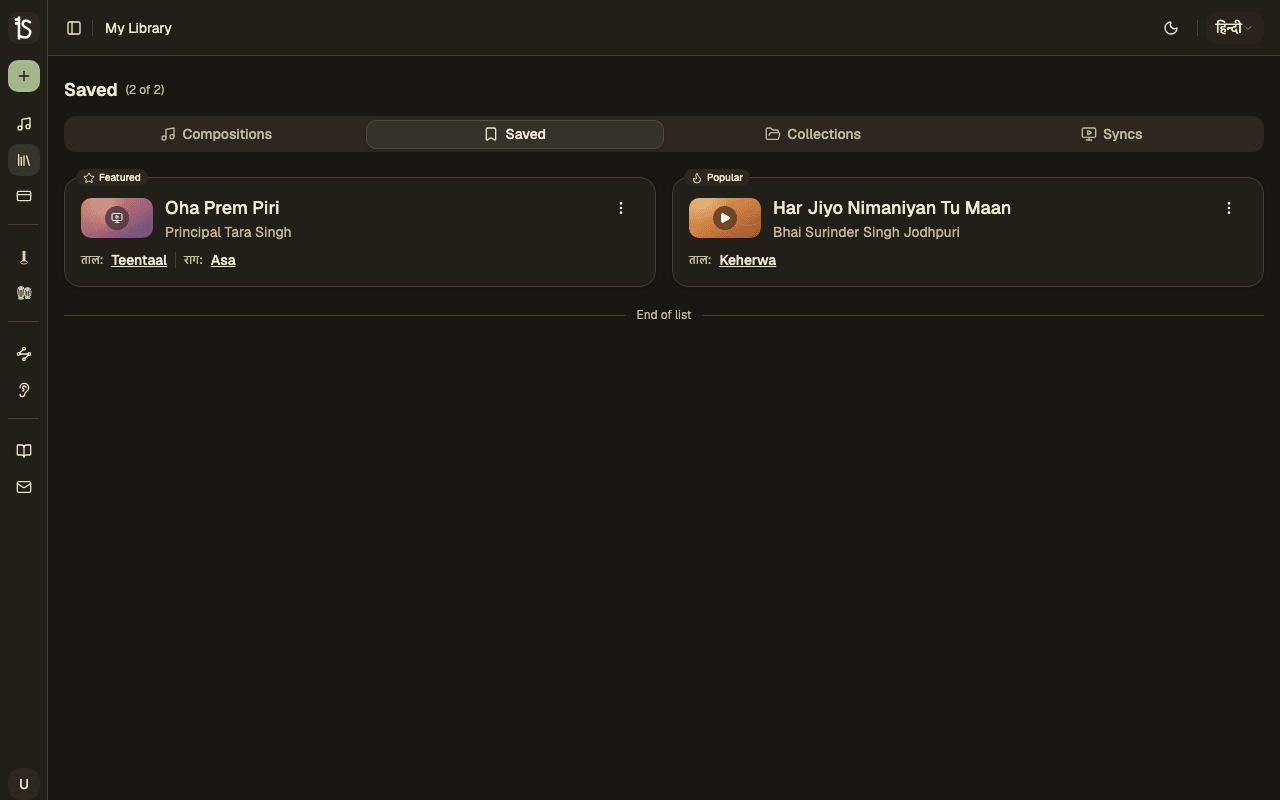
Saved Compositions
All your bookmarked compositions are collected in one place. Access them from the "Saved Compositions" link in the sidebar navigation.
My Compositions
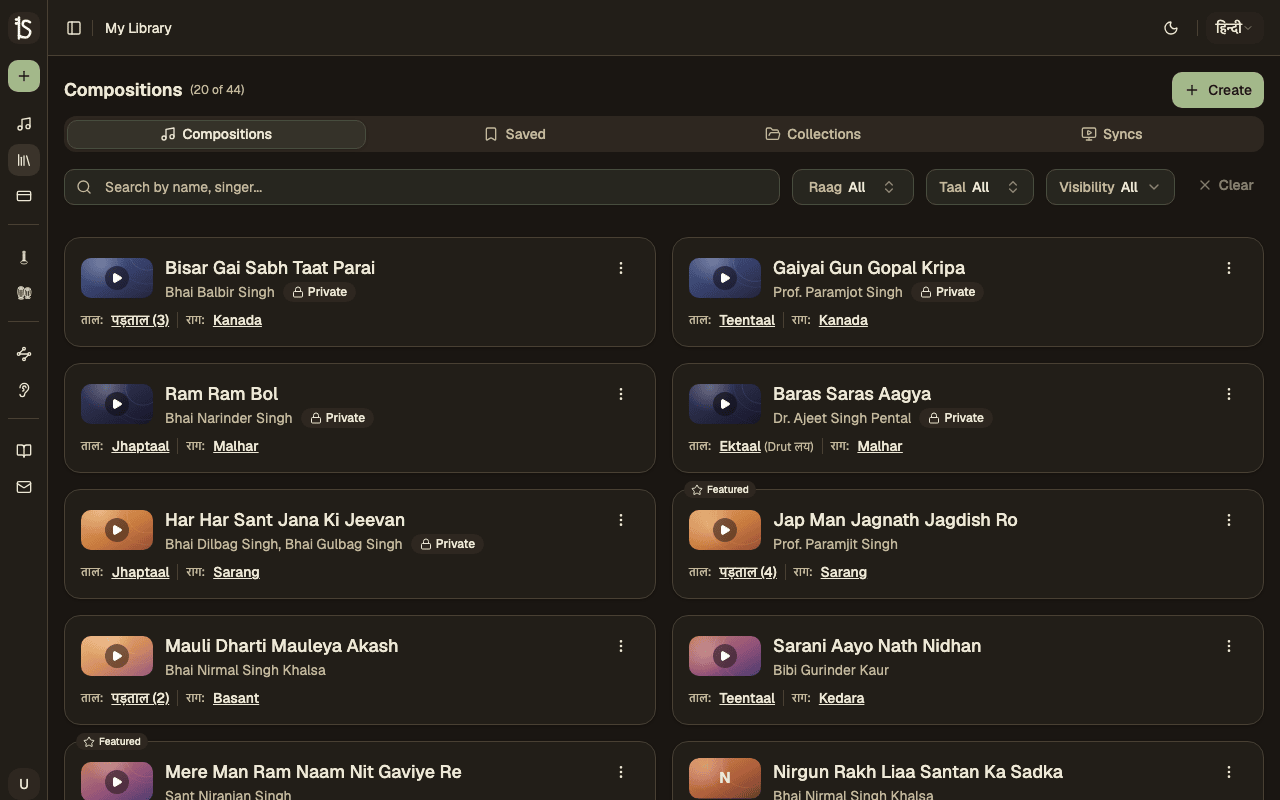
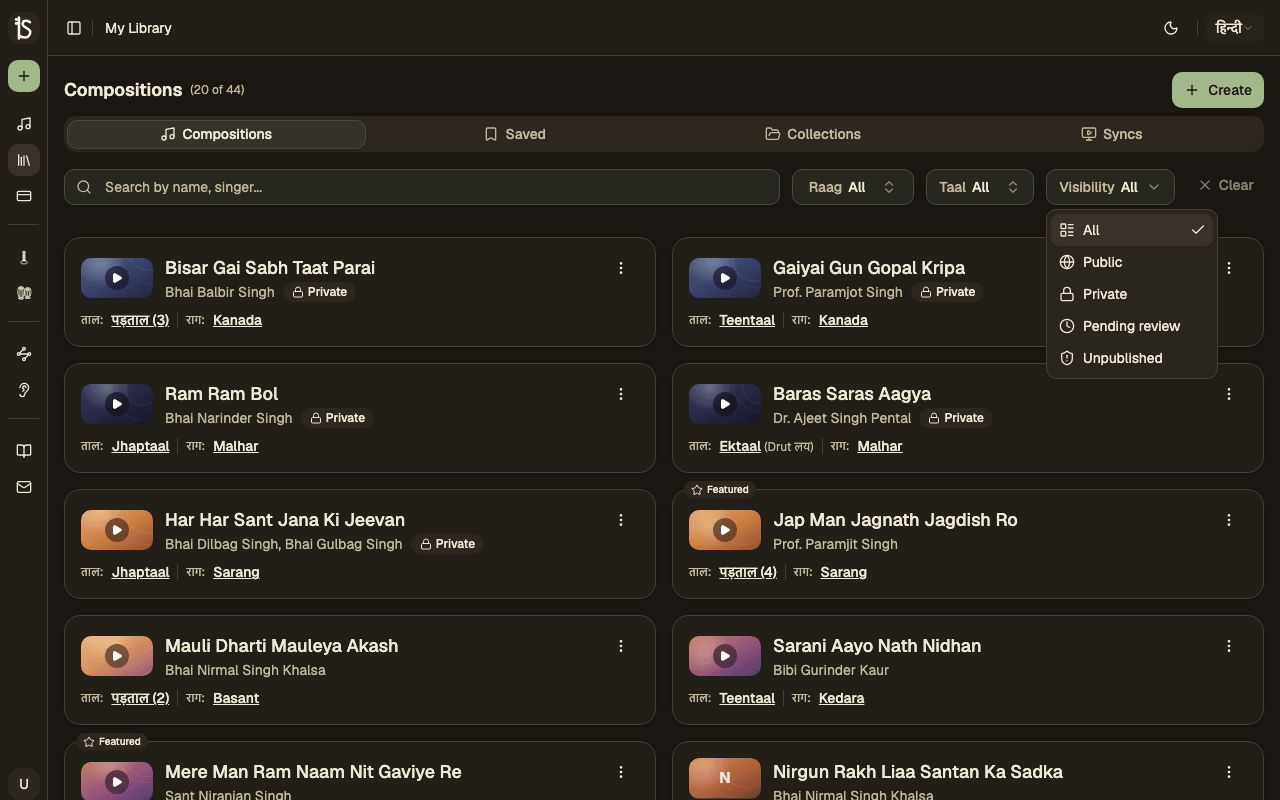
Manage all your compositions in one place — filter by visibility and track your library.
Public
Public compositions are visible to everyone and appear in Discover. Share them with the community.
Private
Private compositions are only visible to you. Keep work-in-progress or personal notations private.
Visibility Filter
Filter your compositions by visibility — view all, only public, or only private compositions.
Visibility Filter
Use the filter dropdown to quickly switch between viewing all your compositions, only public ones, or only private ones.
Create: Metadata
Set up your composition with a name, singer, raga, taal, lyrics, and more.
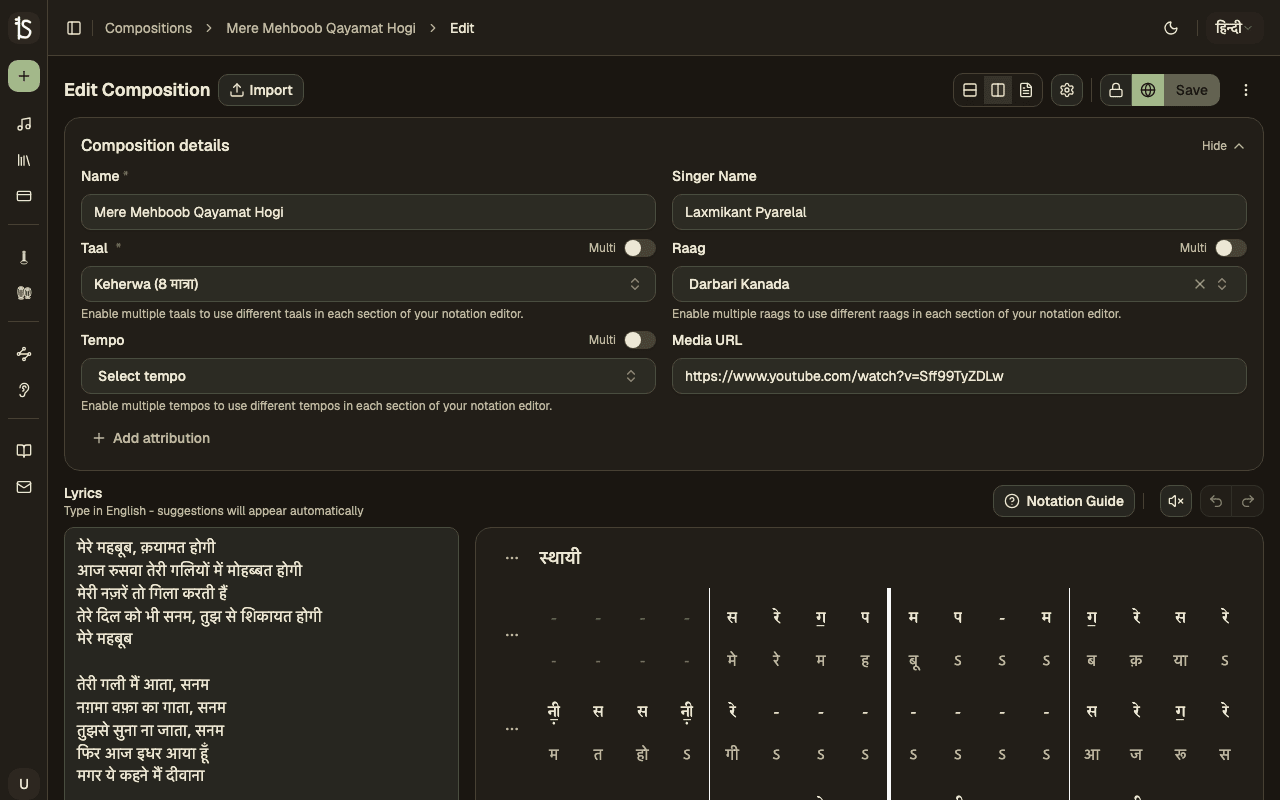
Composition Details
- Name — Title of your composition
- Singer — The performer or tradition behind the recording
- Media URL — Link to a YouTube or audio reference (optional)
- Visibility — Public (discoverable) or Private (only you)
Raag & Taal Selection
Choose from a comprehensive list of raags and taals. The editor automatically configures beat groupings based on your taal selection.
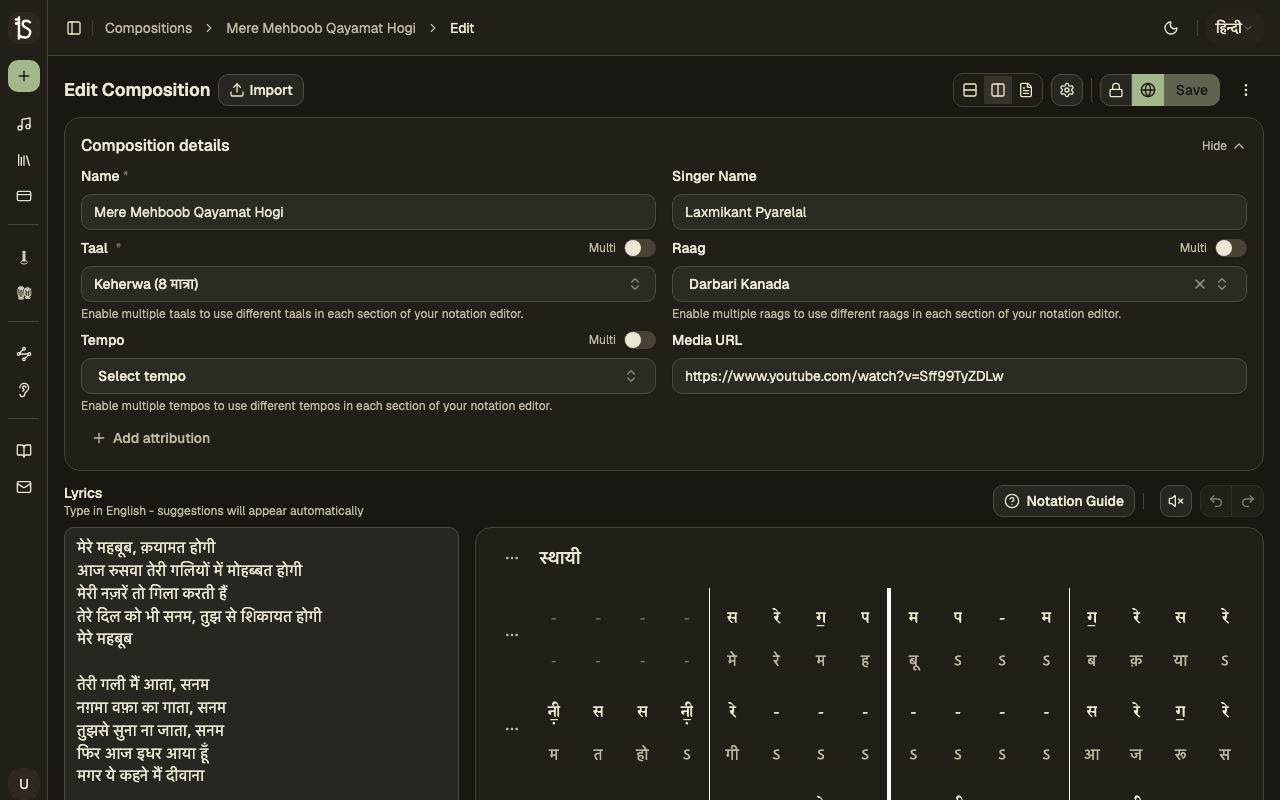
Lyrics Editor
Type your lyrics in phonetic English and the editor will suggest transliterations in your selected language (Hindi, Punjabi, or Bengali). Pick a suggestion or keep typing — the conversion happens automatically.
A composition keeps the script its lyrics were first written in, so editing it later always continues in that script — even if you've since changed your app language. Readers are unaffected: they can view any composition in whichever script they prefer.
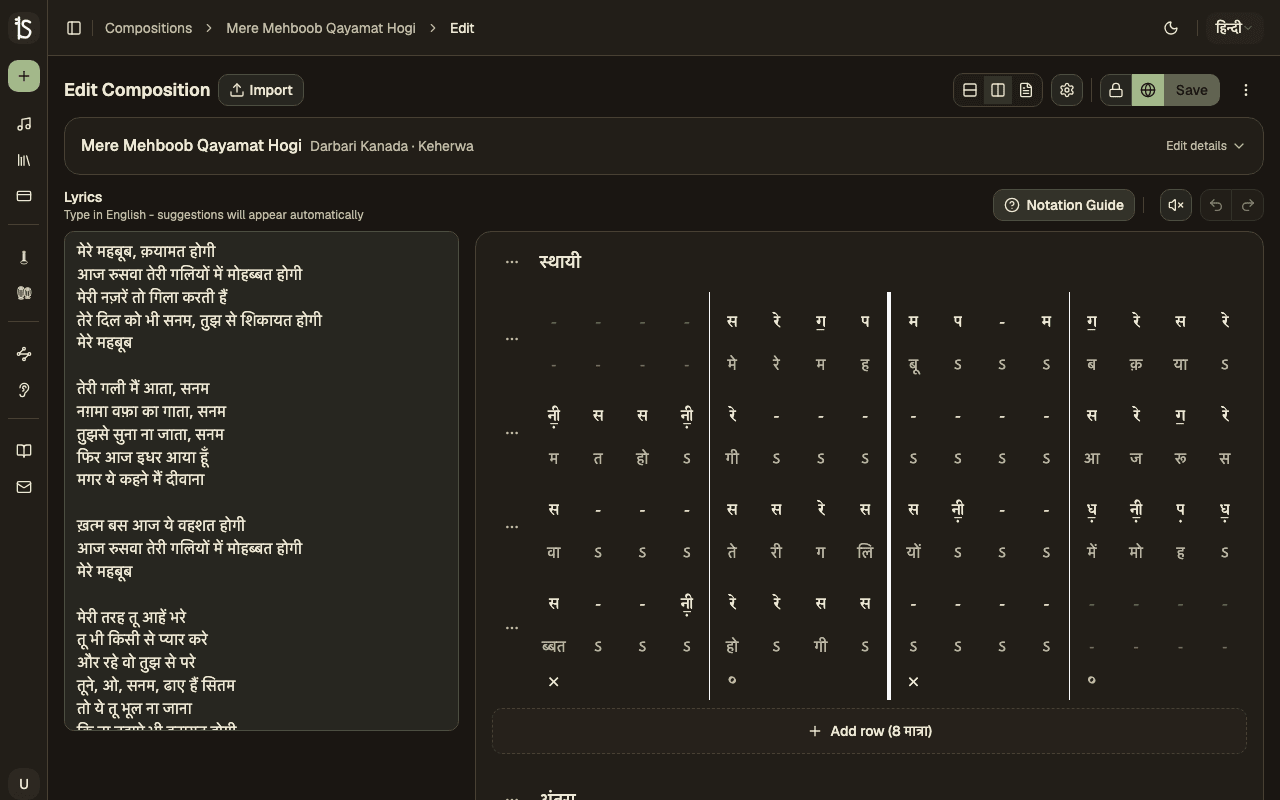
Notation Editor
The core of the app — write Bhatkhande notation using an intuitive cell-based editor with keyboard navigation.
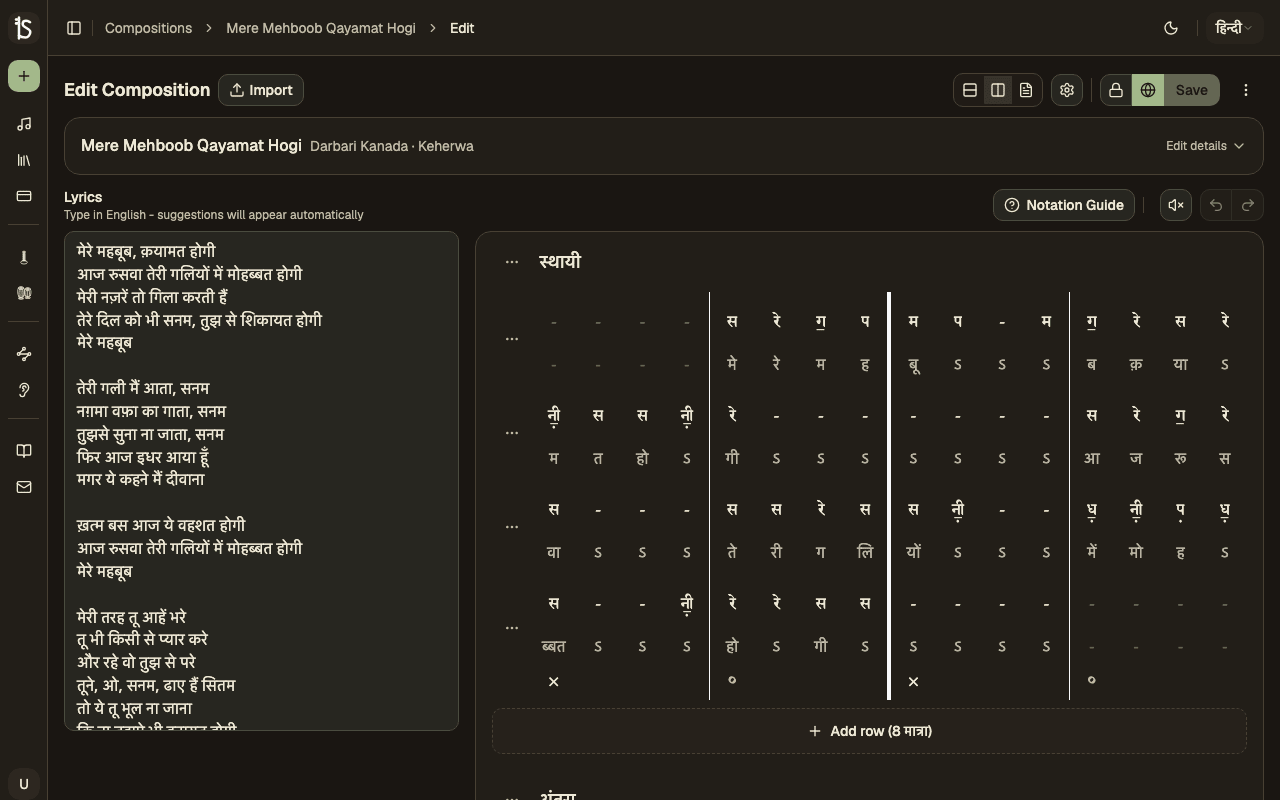
Writing Notation
Type note letters directly into cells: s, r, g, m, p, d, n for Sa, Re, Ga, Ma, Pa, Dha, Ni. Use uppercase for the upper octave and special characters for komal/tivra variants.
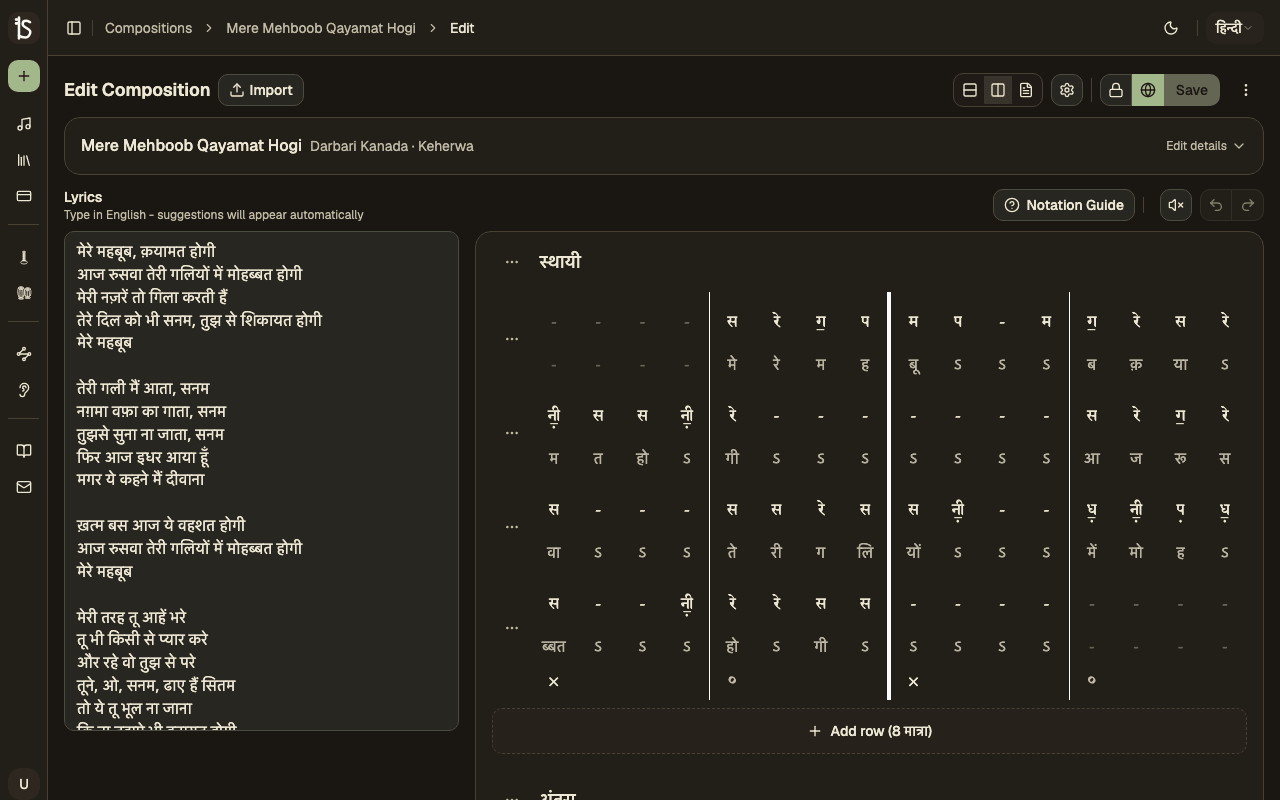
Keyboard Navigation
Use Tab / Shift+Tab or arrow keys to move between cells, and press Space on the last beat (or the Add row button) to add a new row.
Play While Typing
Toggle sound feedback to hear each note as you type it. Helps catch errors immediately.
Row Controls
Each row has controls for managing your notation:
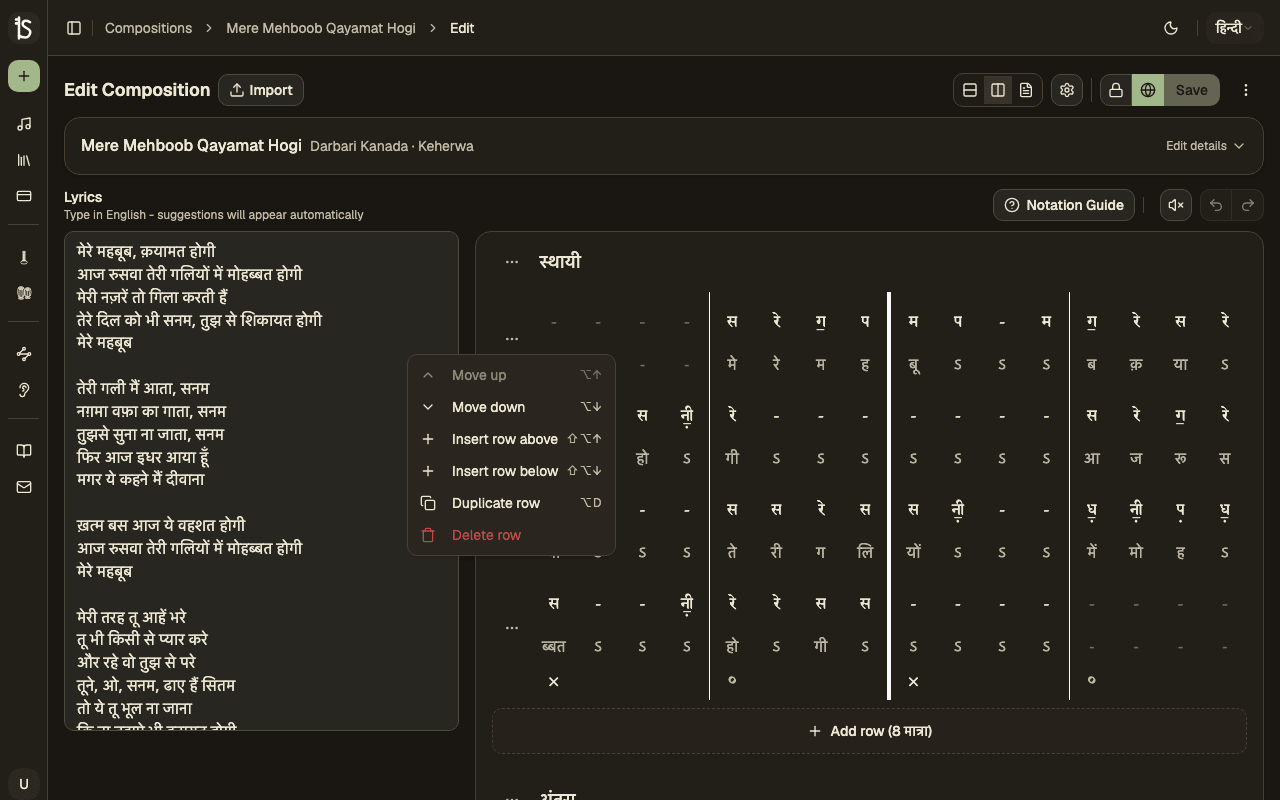
Desktop keyboard shortcuts
Section Management
Organize your notation into musical sections like Sthayi, Antara, Sanchari, and Abhog. Each section can be renamed, reordered, or deleted.
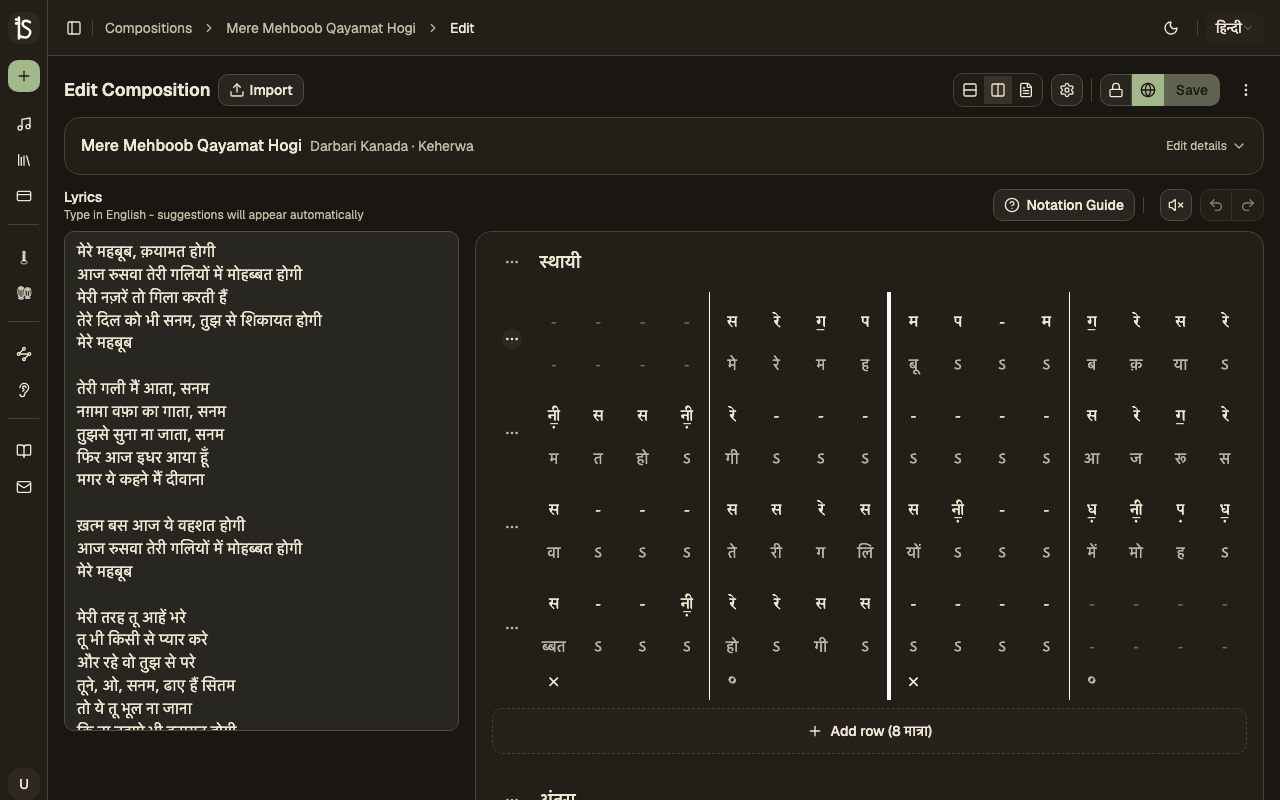
Editor Toolbar
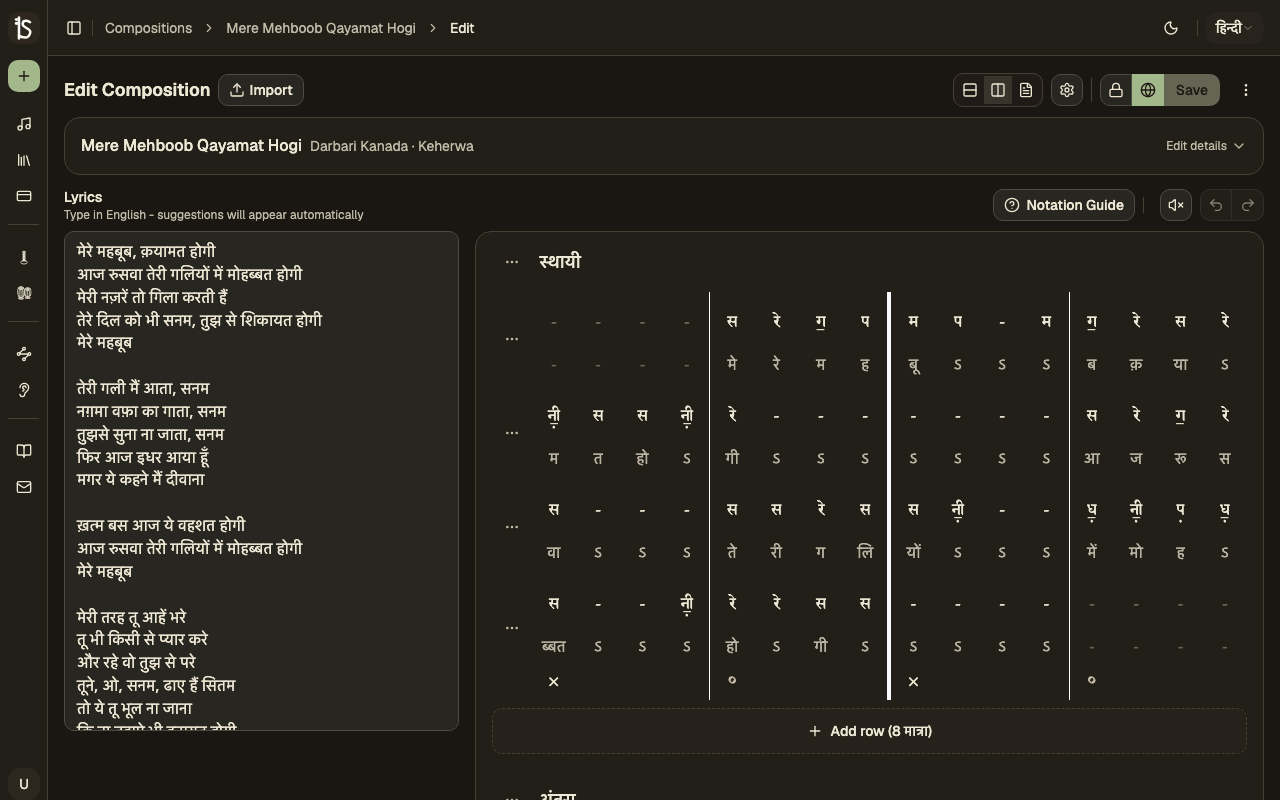
Notation & Lyrics
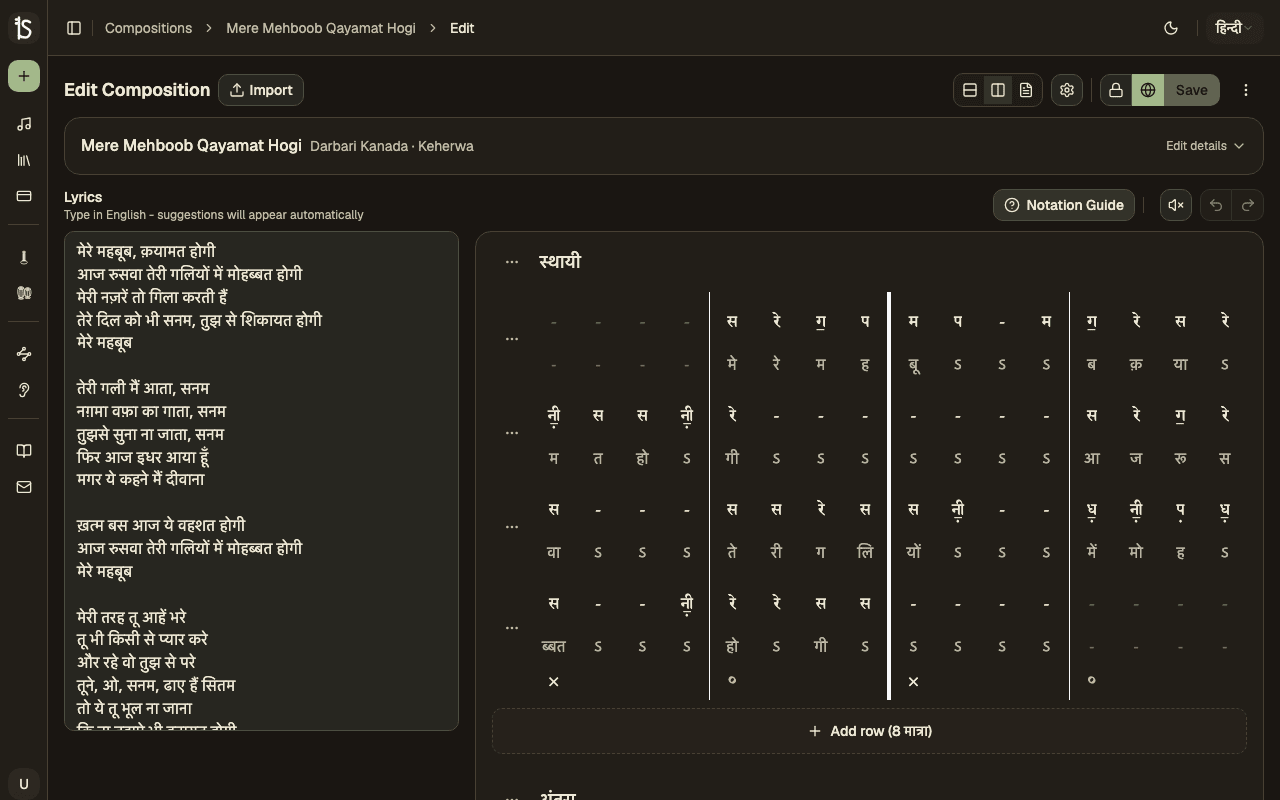
Notes are rendered in traditional Bhatkhande notation — komal underlines, tivra marks, octave dots and ornaments — in your chosen script. Each cell has two rows: the note on top and the lyric syllable below.
Type lyric syllables in phonetic English below each note — an autocomplete popover will suggest transliterations in your selected language. Pick a suggestion to insert the converted text.
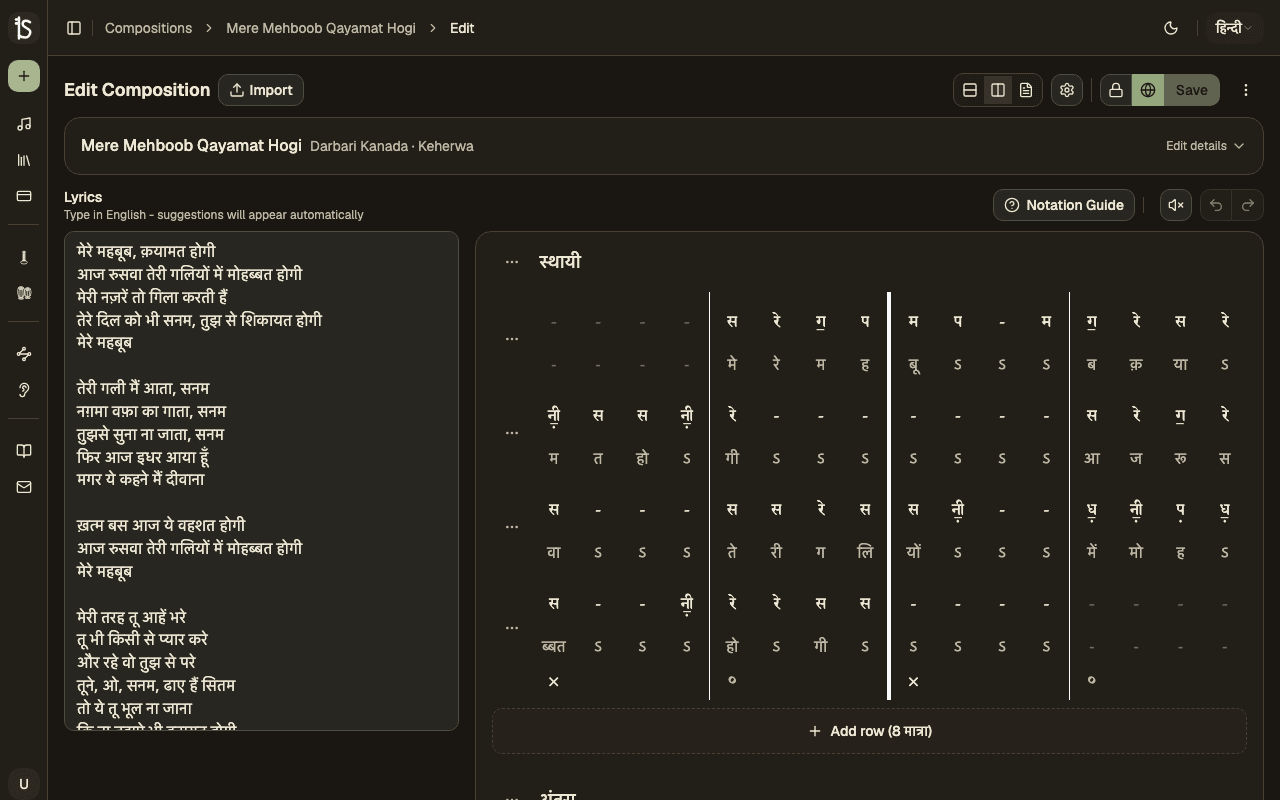
Notation Reference
A built-in guide sheet to help you write Bhatkhande notation correctly.
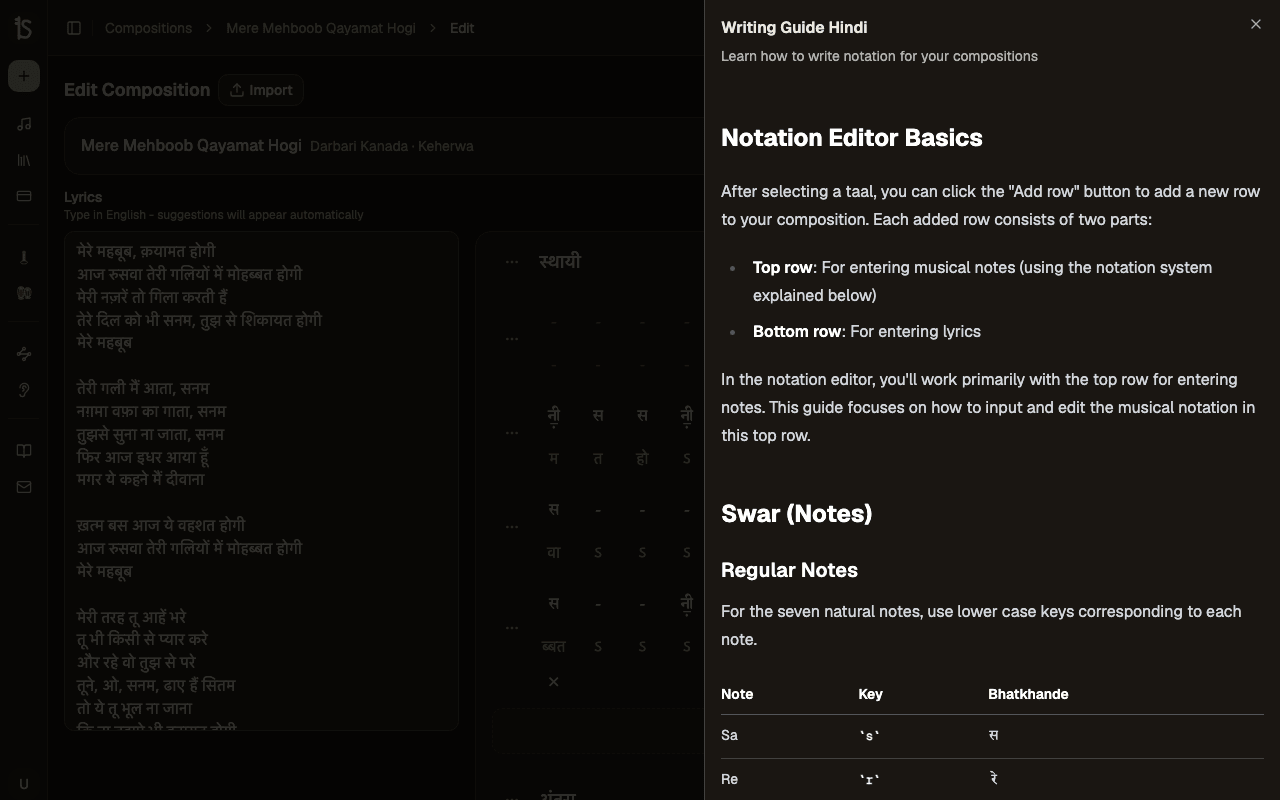
Notes Tab
A complete swar reference showing how to type each note, including octave markers (mandra, madhya, taar), komal/tivra variants, and special symbols like meend, kan, and krintan.
The full symbol reference with live examples in every script, and a playground to try notation in, is at swarlipi.beejaysoft.com.
View Composition
Read and interact with Sangeet compositions in a clean, focused view.
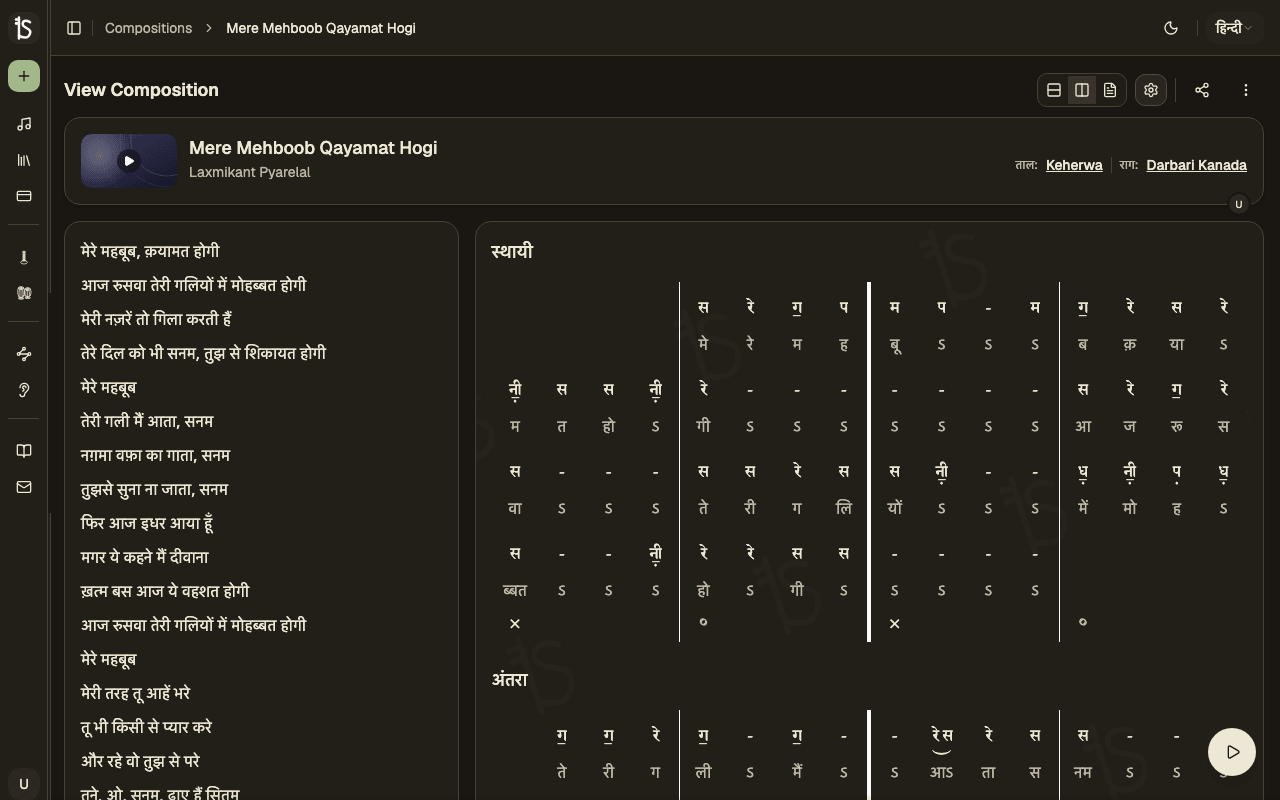
Layout Modes
Choose how to display lyrics and notation:
Side by Side
Lyrics on the left, notation on the right. Ideal for desktop.
Stacked
Lyrics above, notation below. Great for mobile or narrow screens.
Notation Only
Full-width notation view. Focus purely on the musical content.
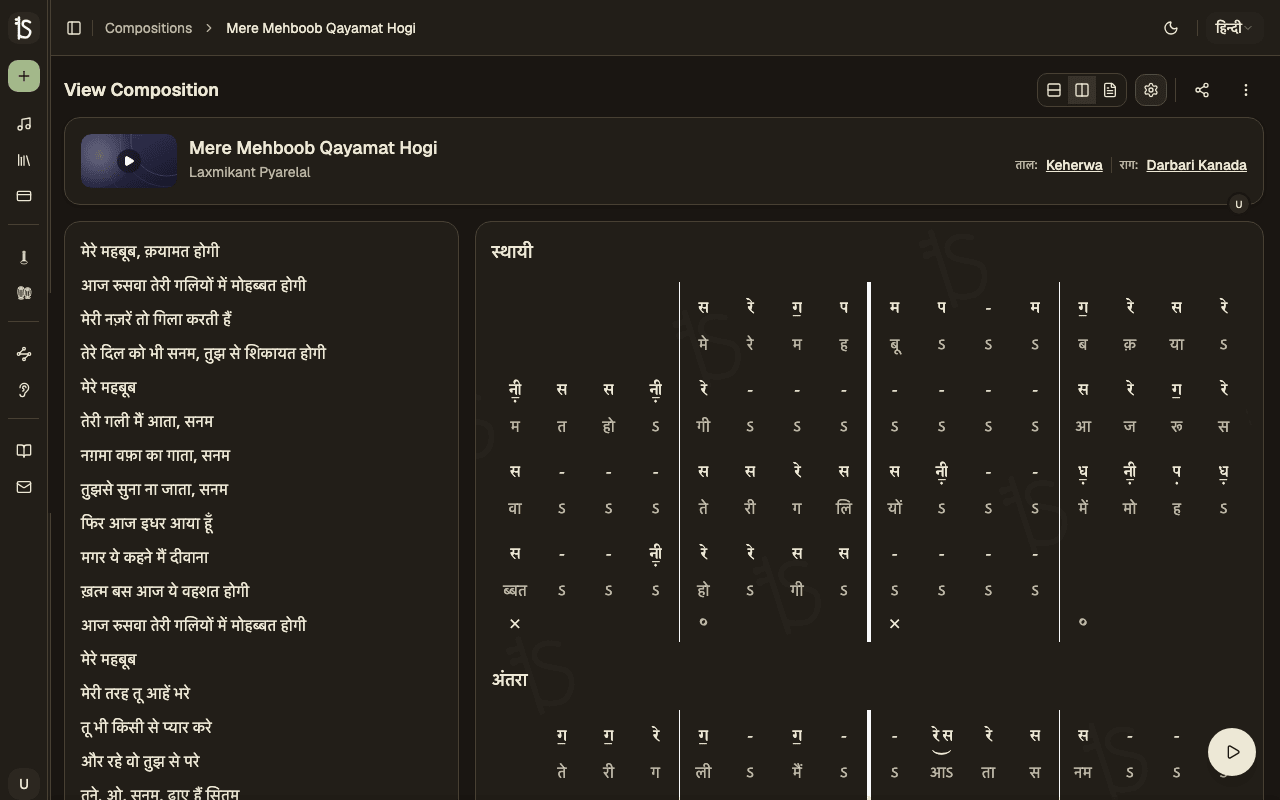
Metadata Badges
View raga, taal, and singer details at a glance with badges displayed above the notation. If the composition has been transposed, a transposition badge shows the current offset.
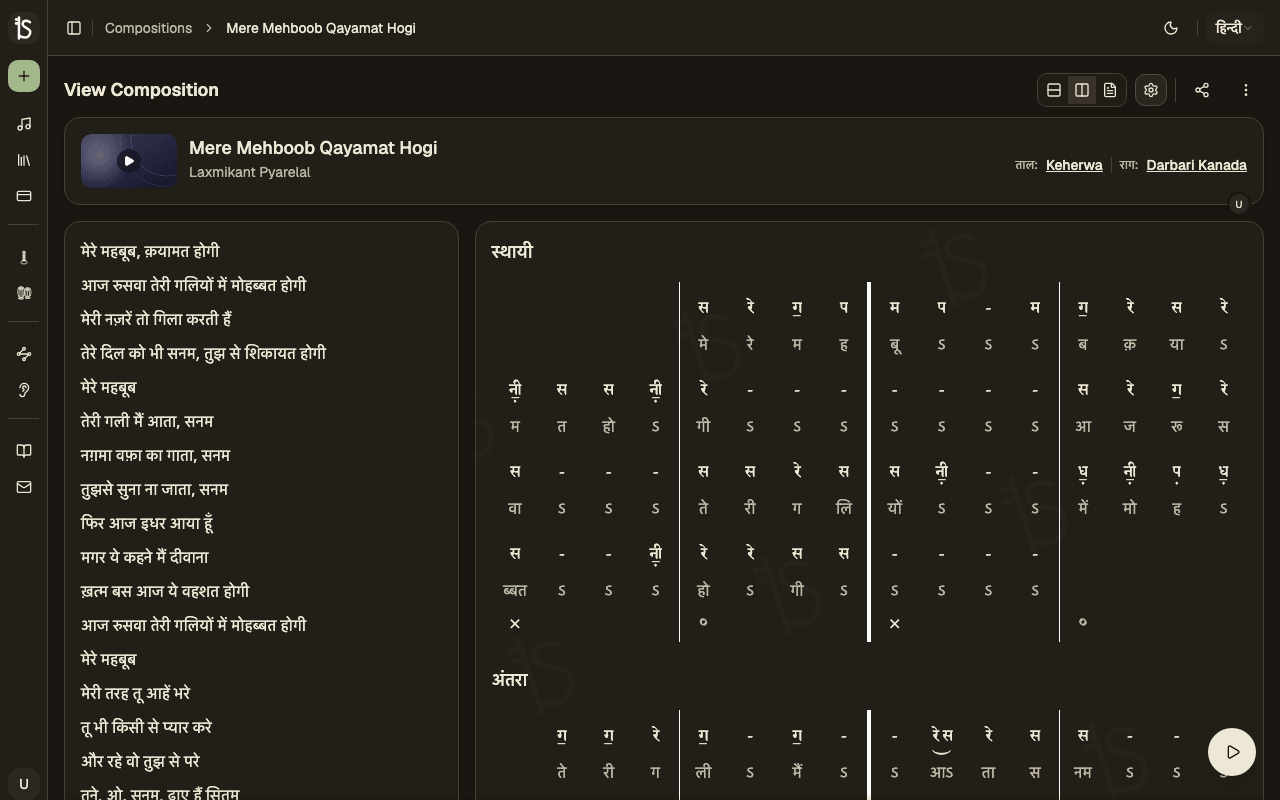
Composition Settings
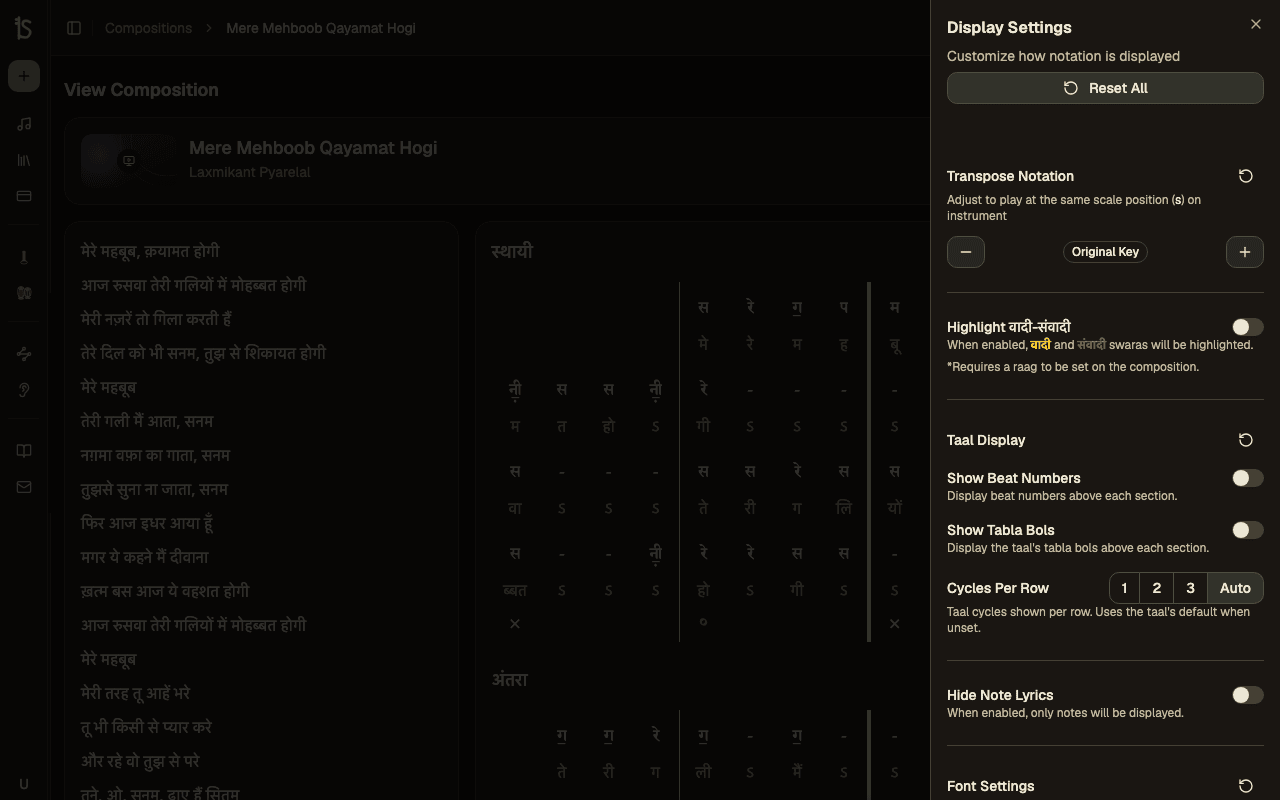
Customize how a composition is displayed — transpose, adjust fonts, highlight important notes, and more.
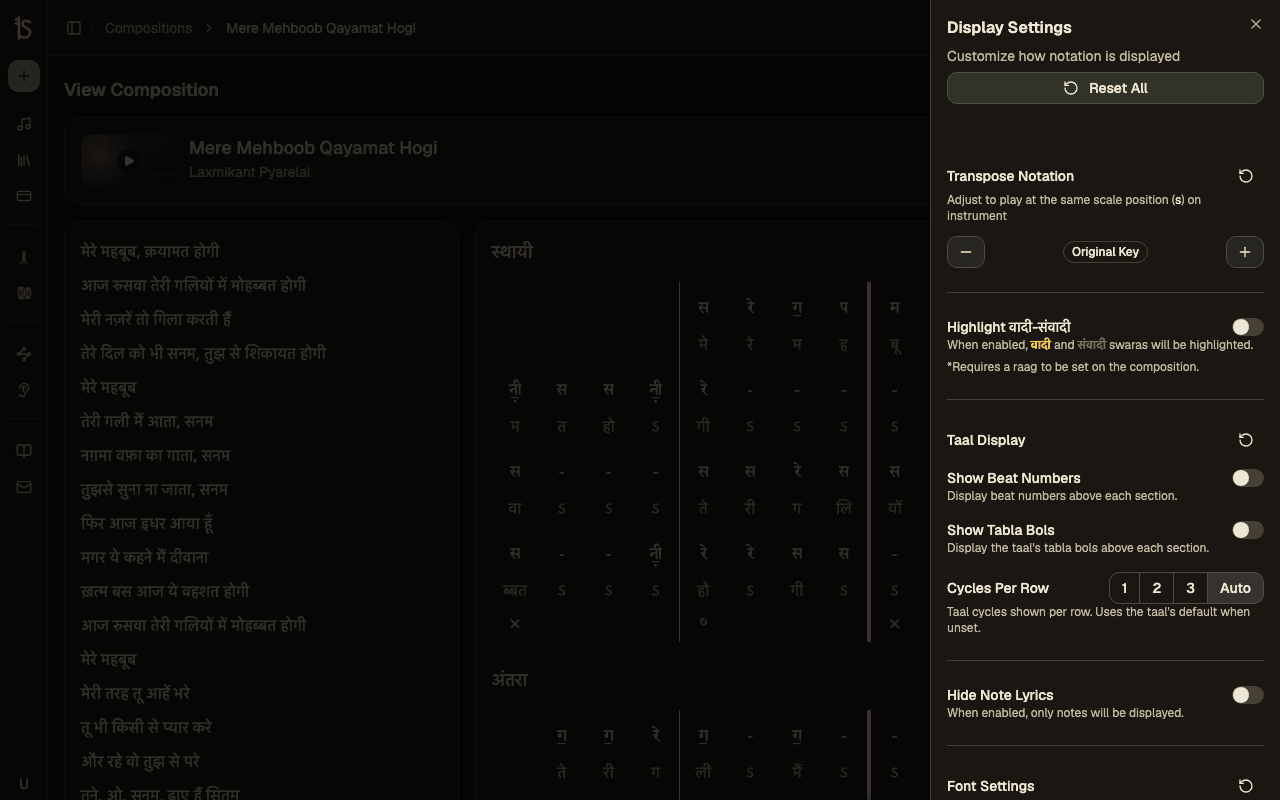
Transpose
Shift the entire composition up or down by semitones. Useful for matching your vocal range or instrument tuning.
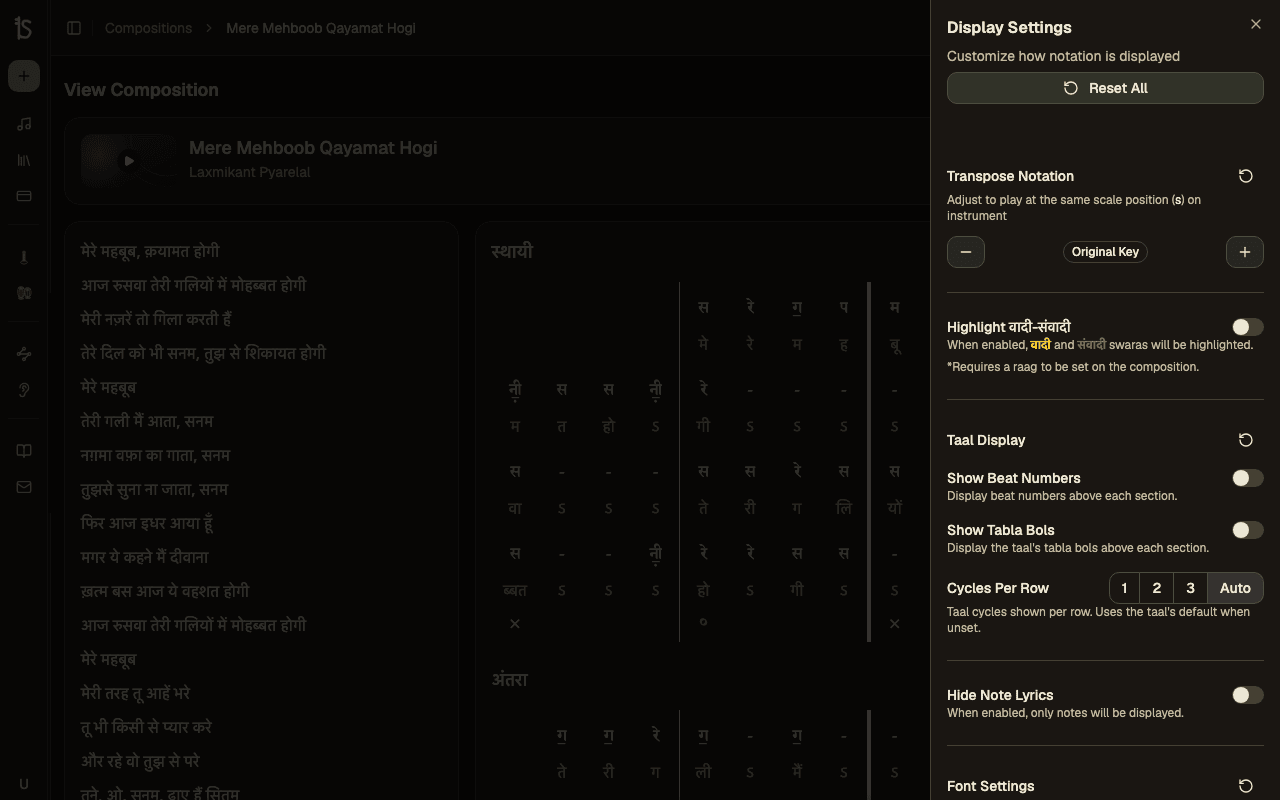
Display Settings
Adjust font size, weight, and cycles per row. Hide lyrics to focus on notation, or hide the watermark for clean prints.
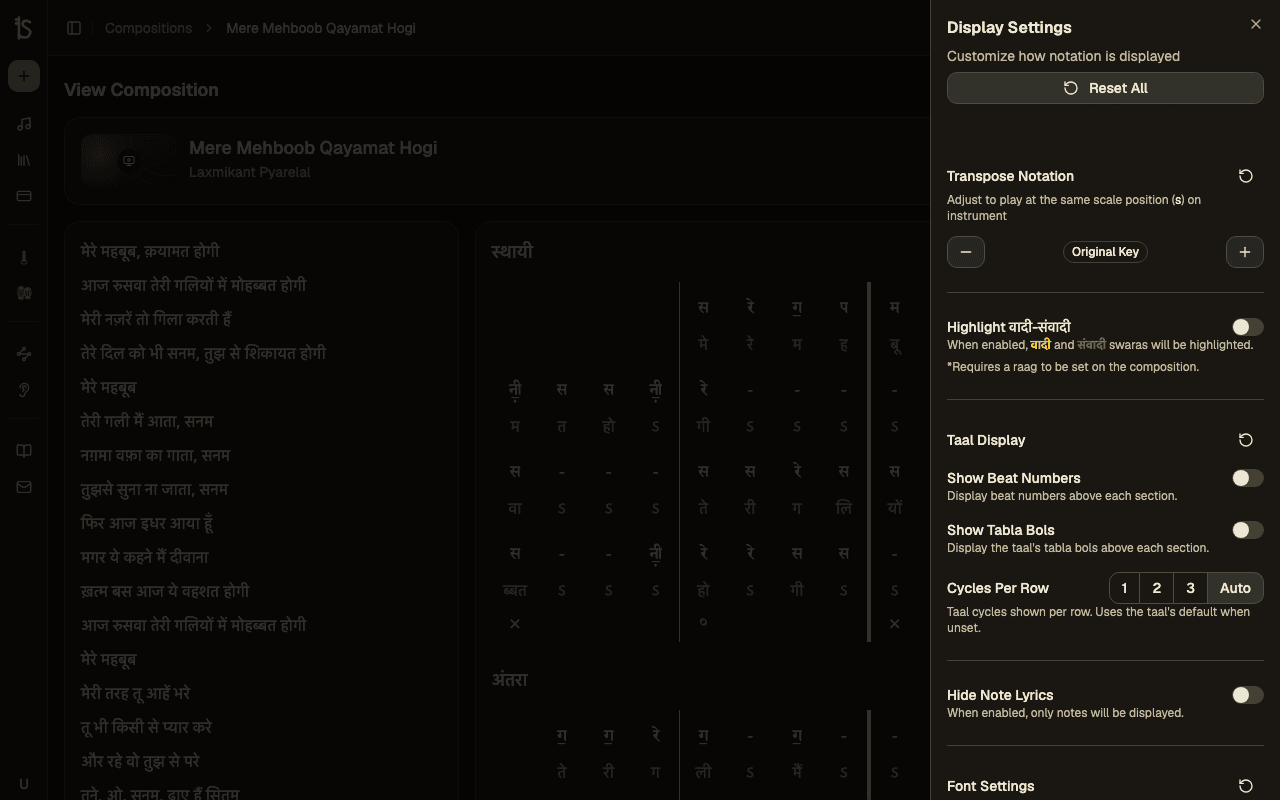
Vadi/Samvadi Highlight
Highlight the Vadi (dominant) and Samvadi (sub-dominant) notes in the notation to help identify the raag's character.
Hide/Show Options
Toggle note lyrics visibility, hide the watermark for PDF exports, and control what's shown on screen.
Transposition Controls
Display Customization
Vadi/Samvadi Highlighting
Notation Player
Listen to your compositions with the built-in player — adjust tempo, loop sections, and practice with tabla and tanpura.
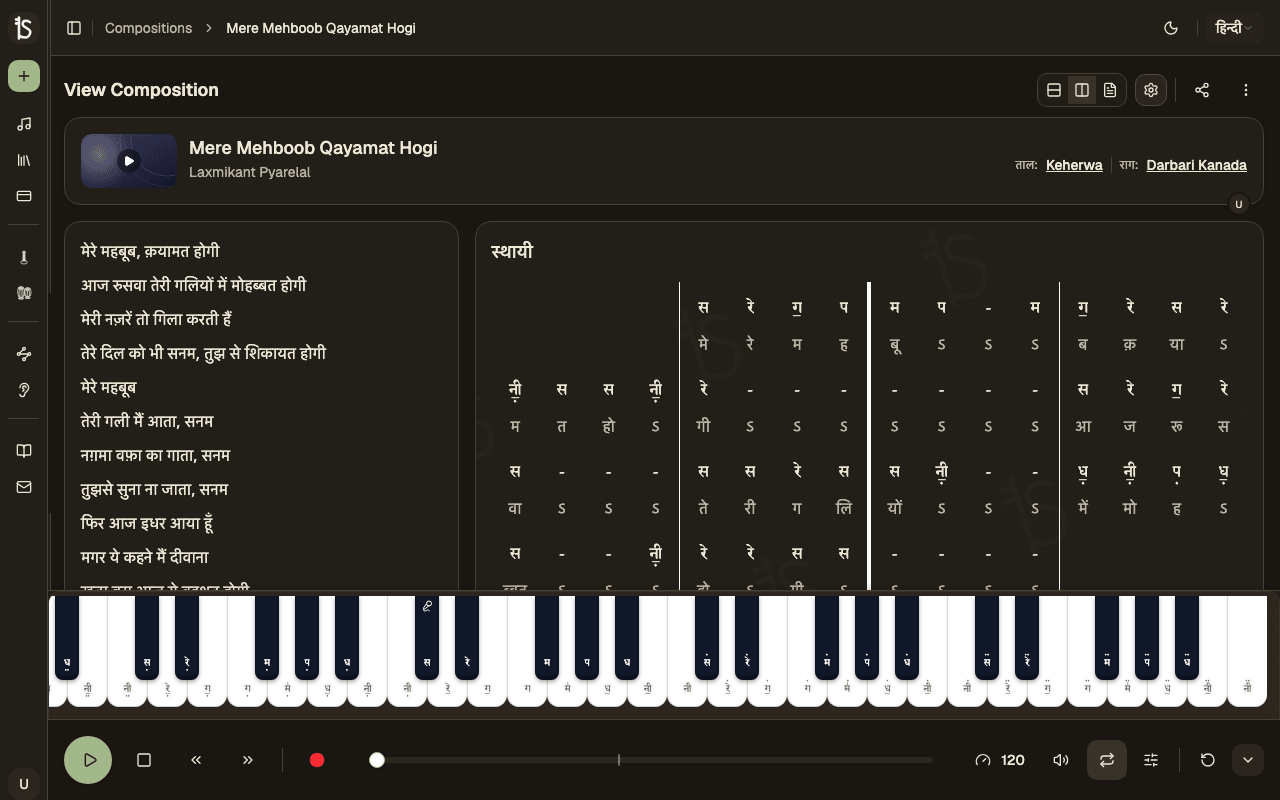
Playback Controls
Play, pause, and stop. The notation highlights each beat as it plays, auto-scrolling to keep up.
Tempo & Volume
Adjust BPM with presets (Slow 80, Medium 120, Fast 180) or set a custom speed. Control volume independently.
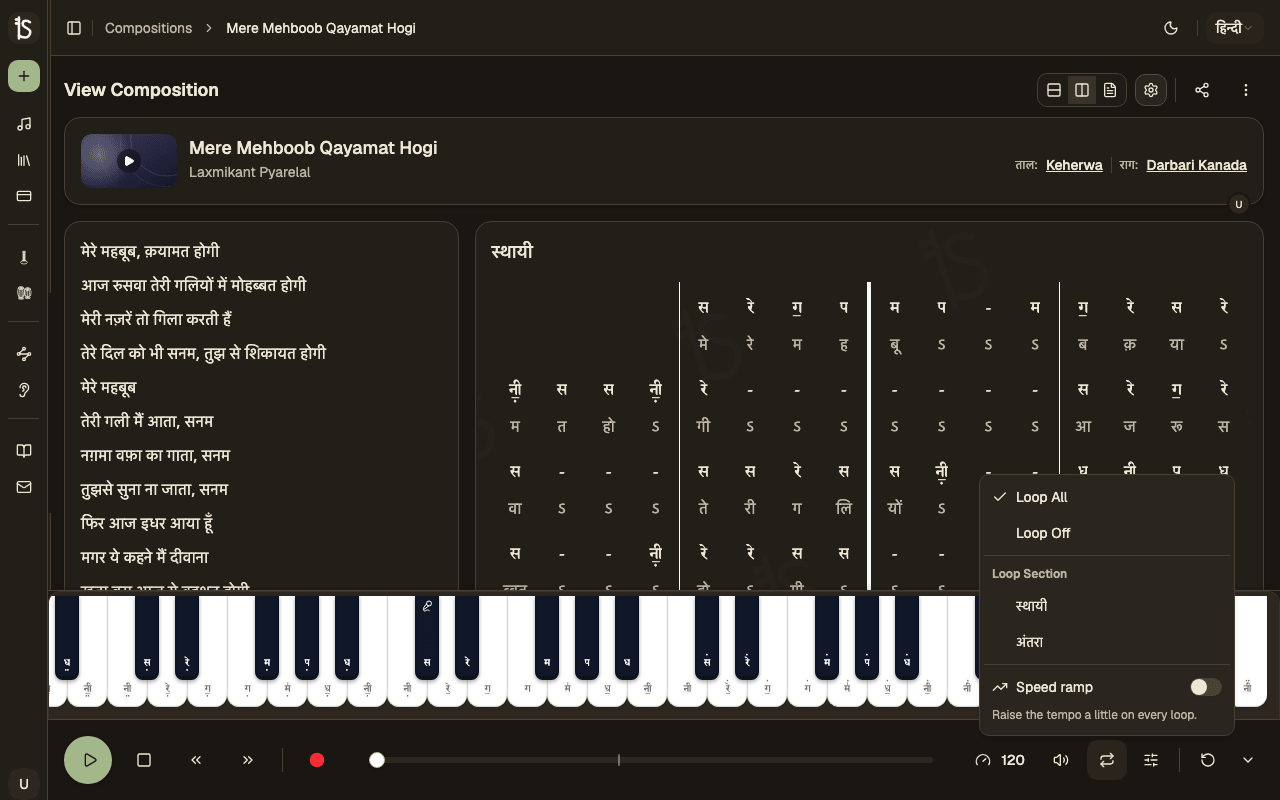
Loop Selector
Loop the entire composition or a specific section for focused practice. Great for learning difficult passages.
Player Controls
Player Settings
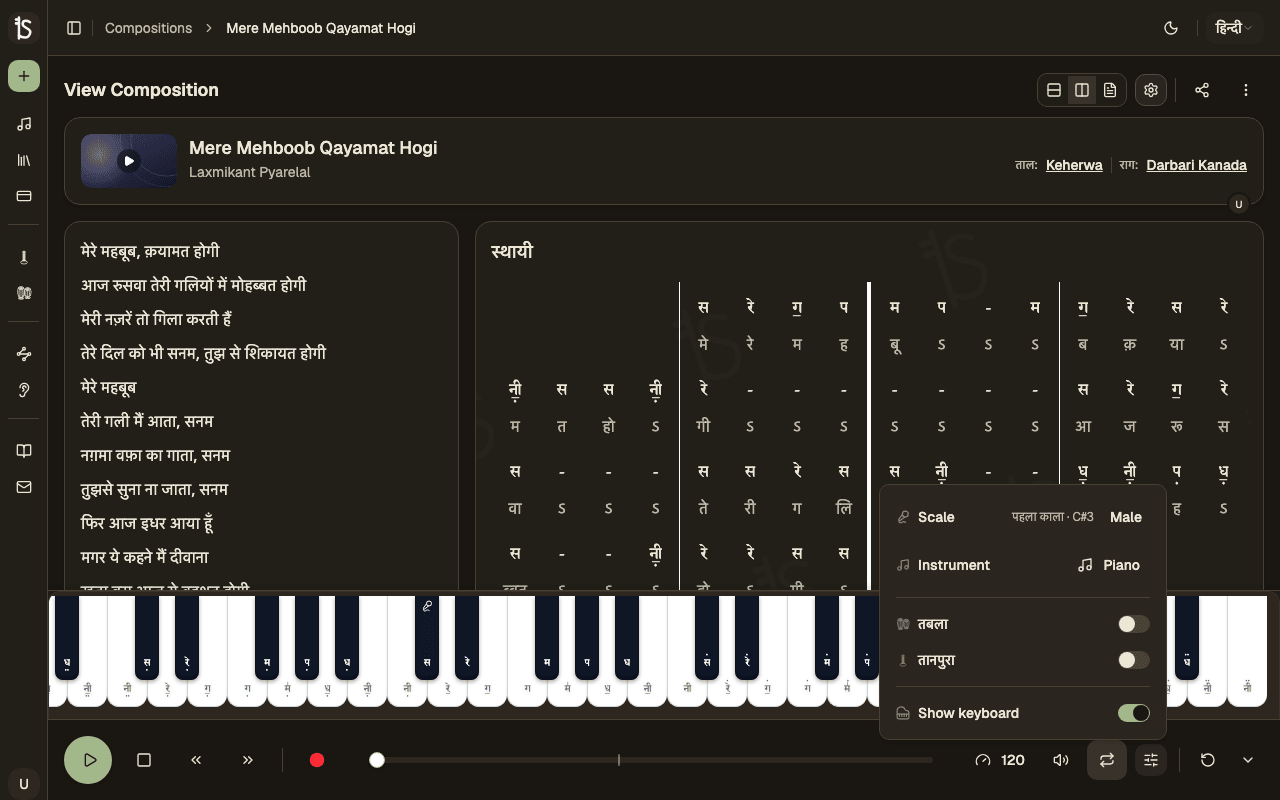
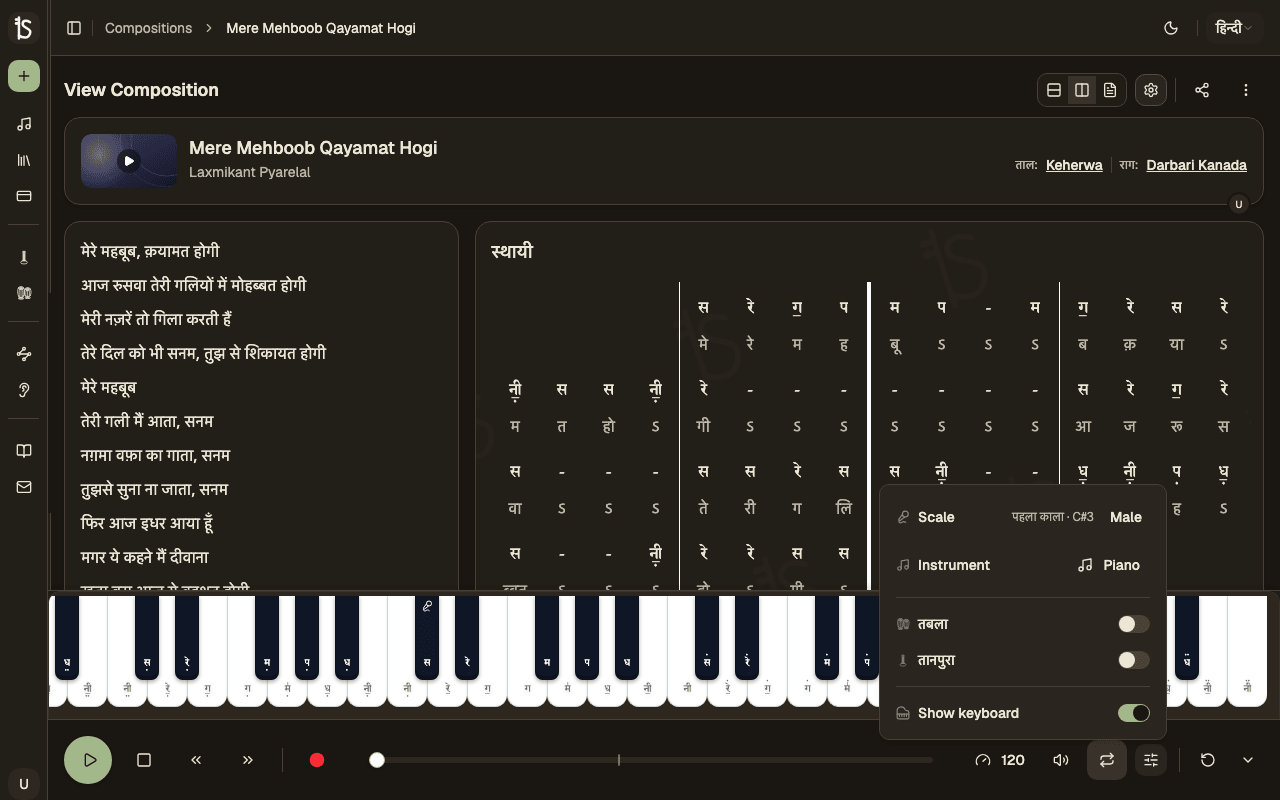
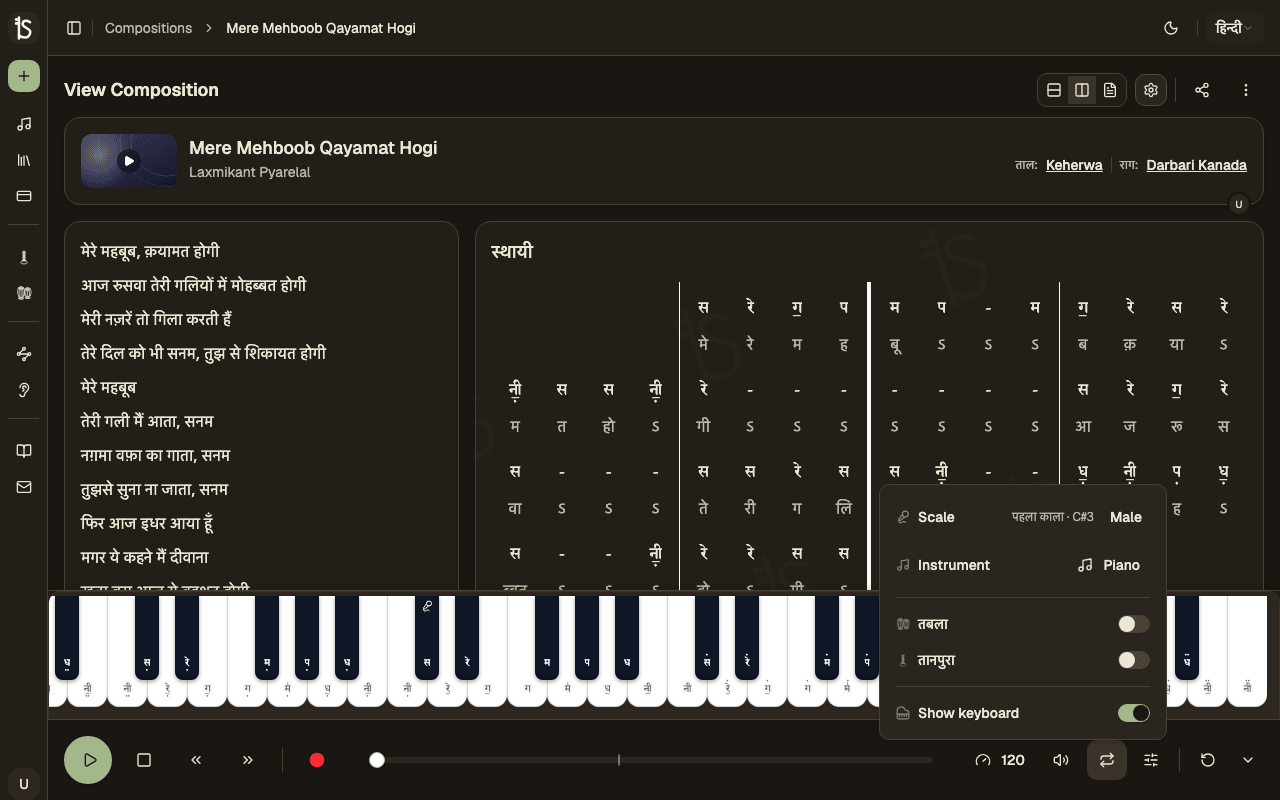
Click the settings icon in the player bar to access practice tools, instrument selection, scale settings, and keyboard visualizer toggle.
Practice Tools
Tabla
Enable tabla accompaniment that follows the taal. Adjust volume independently.
Tanpura
Add tanpura drone in the background for pitch reference. Adjustable volume.
Loop Selector
Choose to loop the full composition, a specific section, or turn looping off. The loop selector shows all available sections so you can focus your practice on a specific passage.
Scale & Base Sa
Set the base Sa note and octave for playback. Match the player to your vocal range or instrument tuning. You can also right-click the keyboard visualizer to quickly change the base Sa.
Transposed Playback
When a composition is transposed, the player automatically uses the transposed notes. A badge shows the current transposition offset.
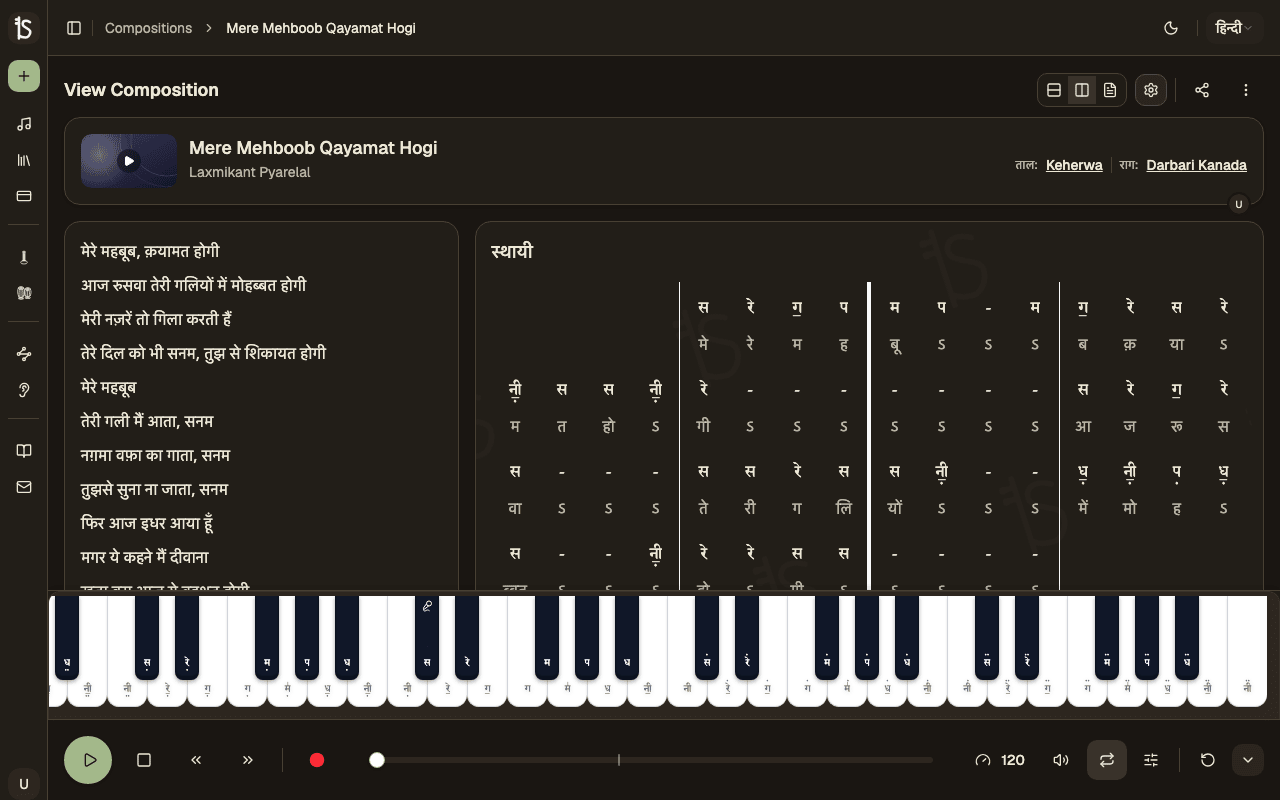
Keyboard Visualizer
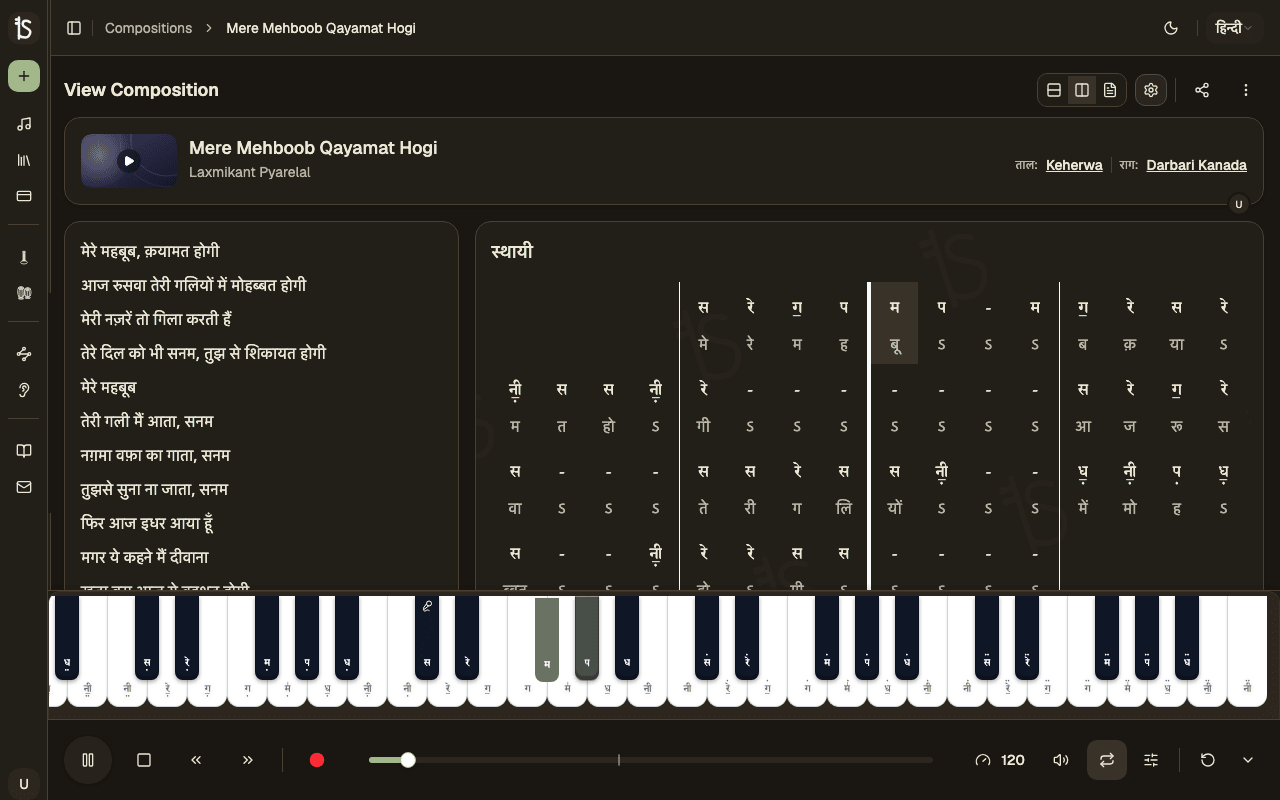
A piano keyboard visualization shows which notes are currently playing. Helps build visual-musical associations and learn note patterns. The currently playing notes are highlighted in real-time.
Learn Line by Line
Learn a Sangeet composition one line at a time — hear a line, sing it back over the tabla, then move to the next.
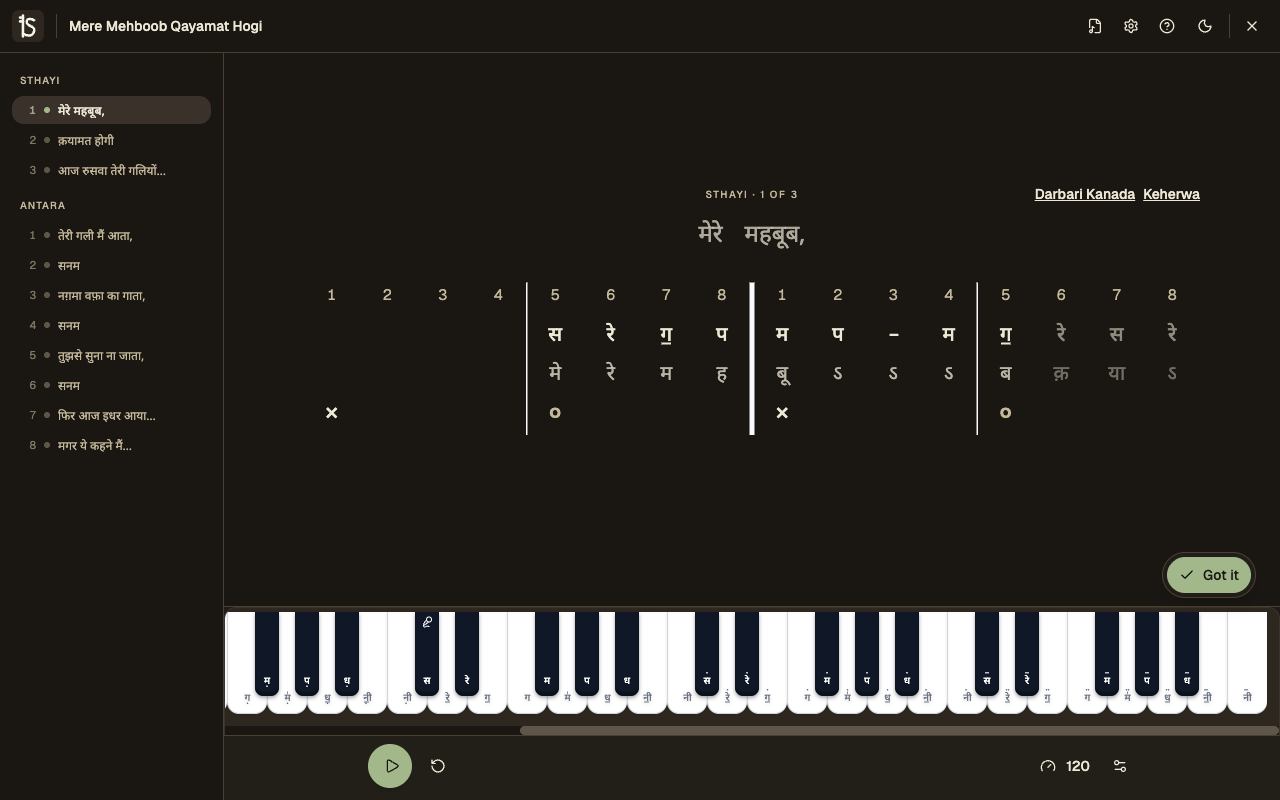
Open any composition and choose Learn. The piece is cut into singable lines — on a composition with lyrics each line starts where a verse or a repeated phrase begins, and otherwise it falls back to one row of the taal. Only the line you are working on is lit; the rest of the sheet stays visible around it, so you can always see where you are in the piece.
Hear it, then sing it back
Press play and the line loops. A full cycle of the taal counts you in, then the first pass plays the melody for you to listen to. On the next pass the melody drops out while the tabla and the moving cursor keep going — that is your turn to sing it back. It keeps alternating for as long as you want the line.
When you have it, press Got it and Learn moves on and remembers your place. Space plays and pauses, → is Got it, ← goes back, and R restarts the line from the count-in — so you can keep both hands on your instrument.
Jump to any line
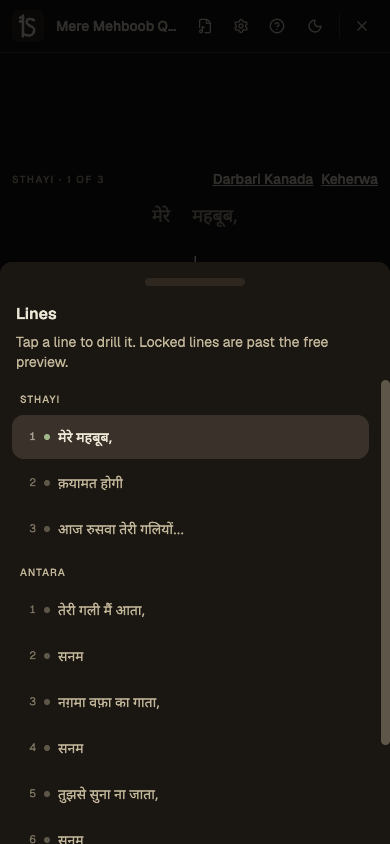
The rail beside the sheet lists every line with its opening words, so you can drop straight into the antara or go back over the line that is giving you trouble. On a phone the same list opens from the transport. Lines you have marked are ticked off as you go.
The tabla keeps time
The theka plays through the count-in and every pass, so you are singing to the taal rather than to a click. Turn it off and a metronome keeps the beat instead.
Picks up where you left off
Your place and the lines you have marked are remembered in your browser, so coming back to a long piece lands you on the line you finished rather than at the top.
Your usual settings
Tempo, scale, instrument, tabla and tanpura are the player's own settings — slow a line right down to learn it, then bring it back up to speed.
Watch
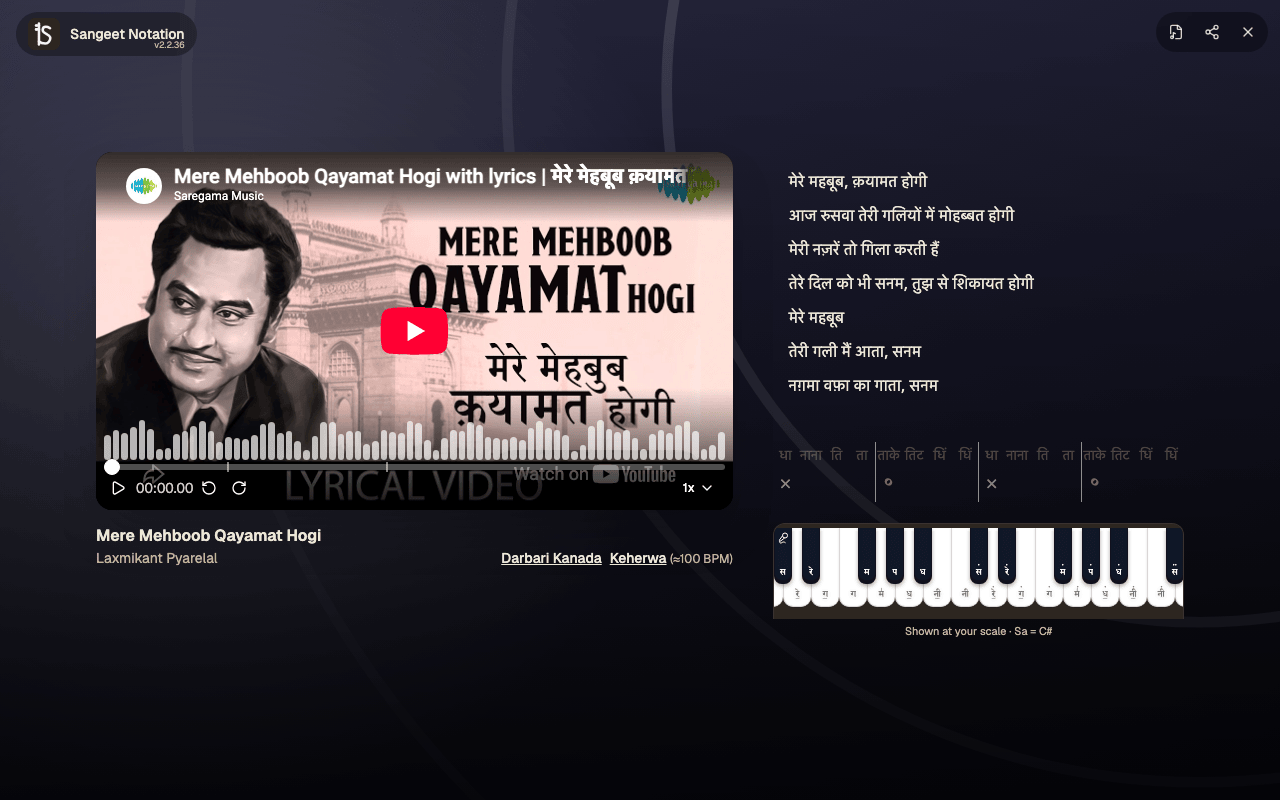
Follow a performance on video while the notation tracks along, beat by beat.
Video-Linked
A YouTube recording plays alongside the composition, so you can hear a real rendition while you read.
Beat-Level Sync
Each beat is aligned to a moment in the video. The notation highlights and scrolls to match what you are hearing.
One Tap Away
Compositions that have a synced video show a play badge on their cover — tap it anywhere you browse to open the synced view.
Recordings
Record yourself singing along with the player and keep the takes on your device.
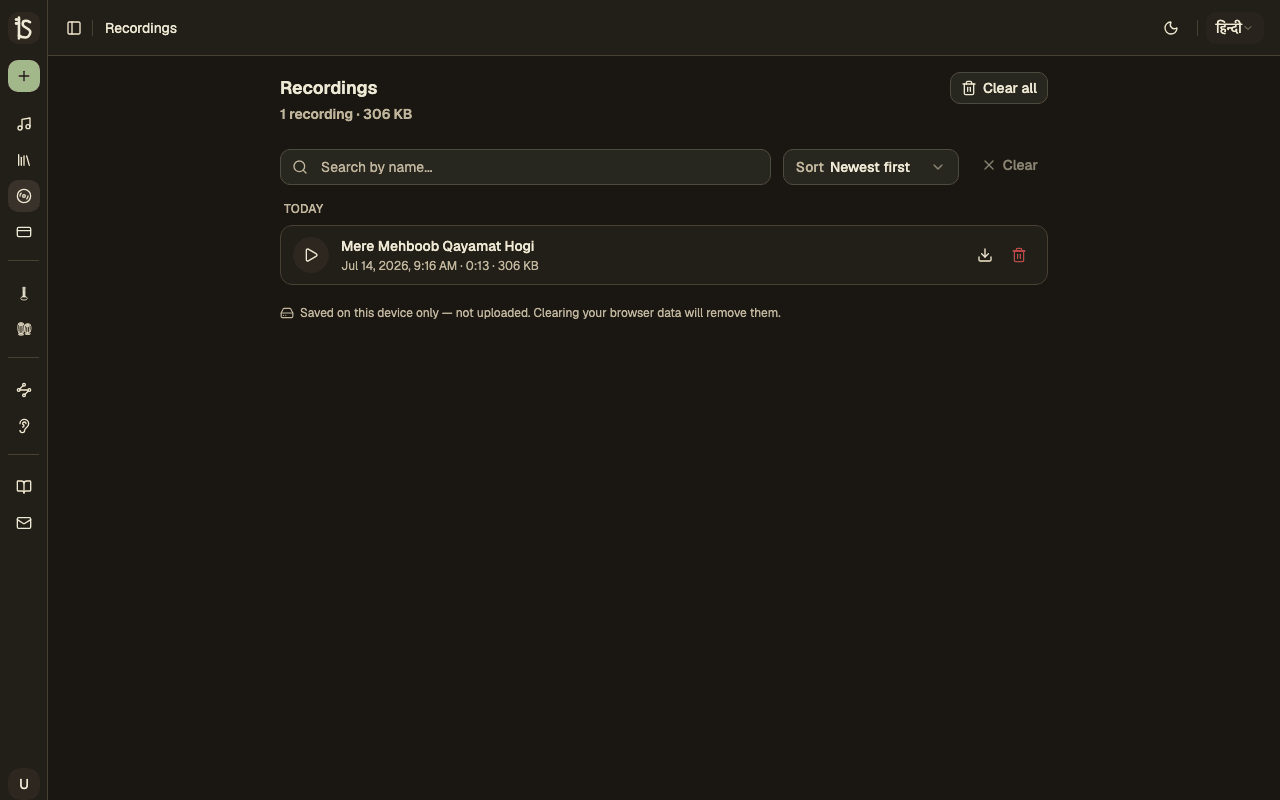
Open any composition's player and tap record to capture a sing-along take over the playback. You can balance your voice against the backing music, and every take is saved locally so you can review it later.
Sing-Along Capture
Record your voice over the player with a countdown before it starts, and adjust the voice-to-music balance.
Download Takes
Play back your recordings and download them whenever you want to keep or share a take.
Stays Private
Recordings are stored on your own device and are never uploaded — they stay entirely private to you.
Practice Tools
Dedicated practice drills — generate alankars in any raag and train your ear to recognise swaras.
Alankars
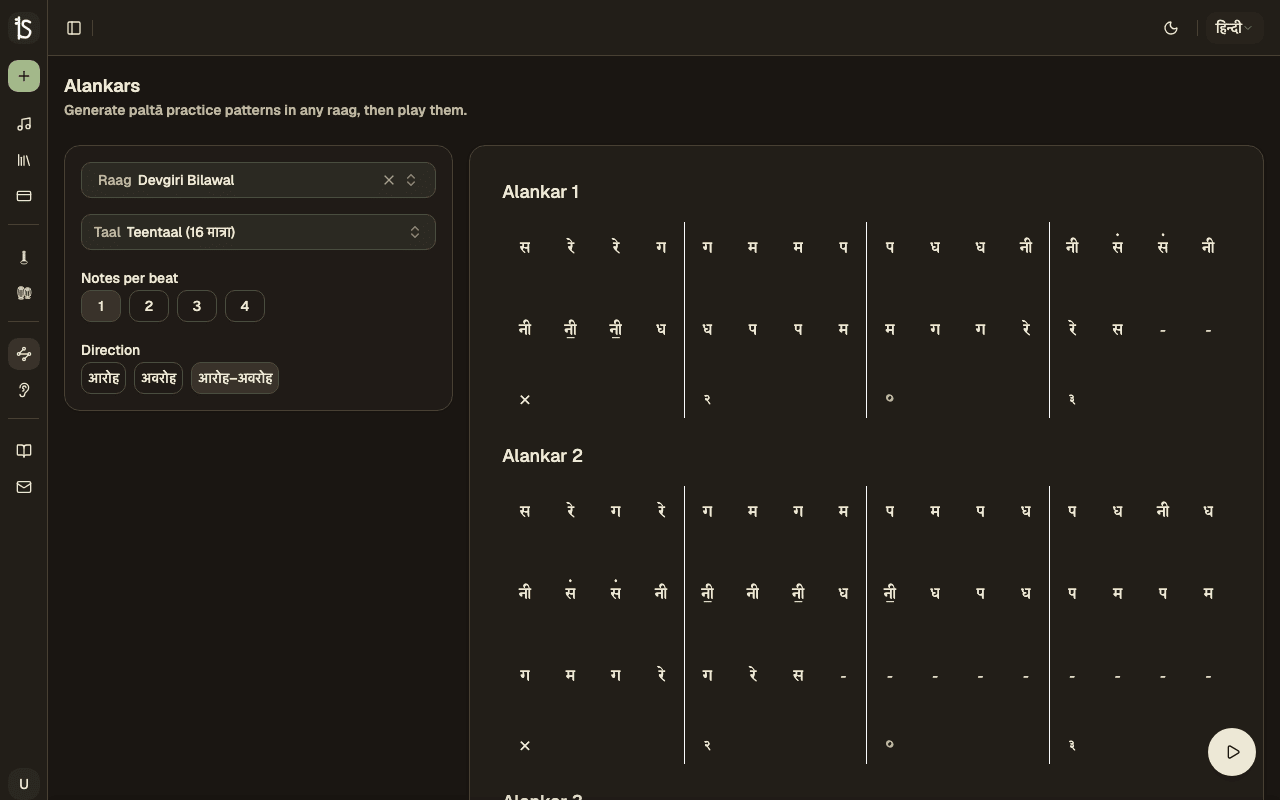
Pick a raag and the generator builds paltā (alankar) patterns for you. Choose the number of notes per beat and the direction, then play them back with tabla and tanpura to practise your runs.
Ear Training
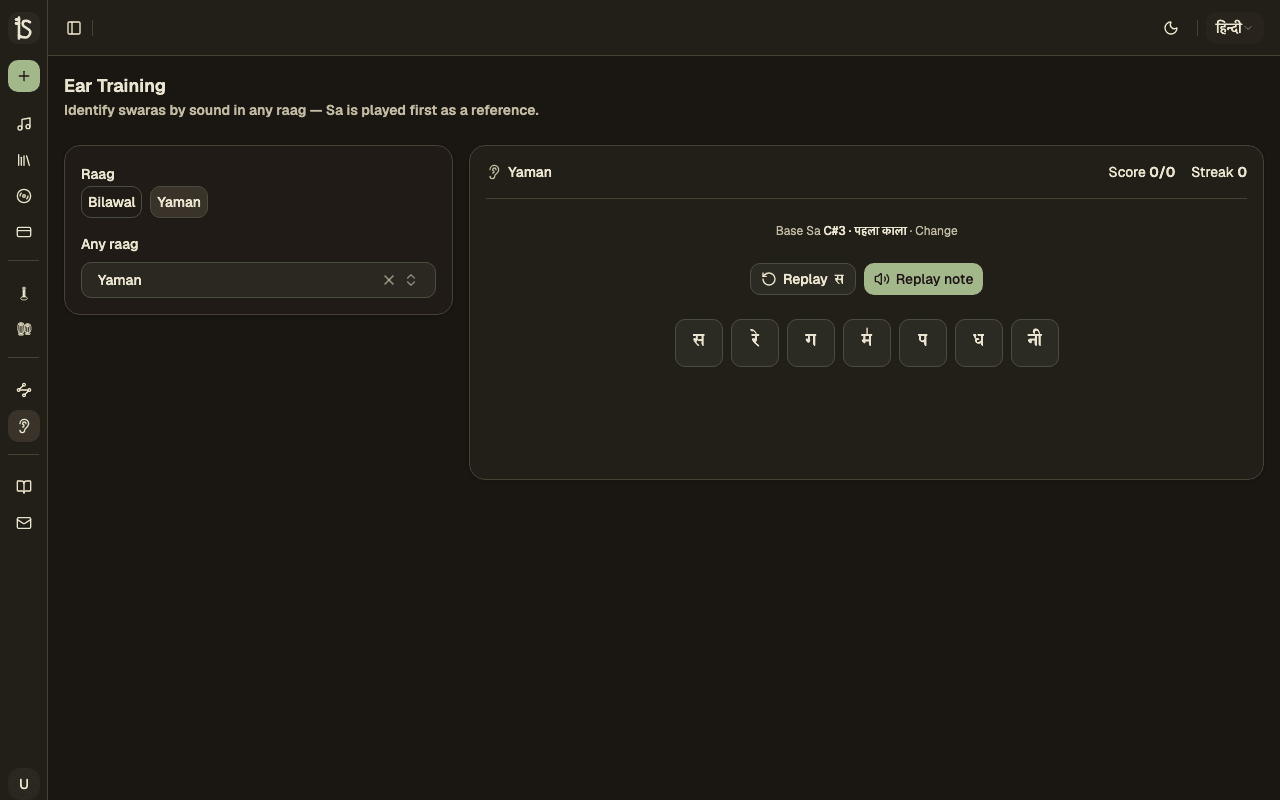
Sa is played as a reference, then a swara sounds — your job is to identify it. The drill is scoped to a raag so you practise relative pitch within a familiar scale.
Any Raag
Generate alankars in any raag from the full library. Ear training starts with a couple of raags free, with the complete picker on the paid plans.
Immediate Feedback
Ear training marks each guess right or wrong on the spot, so you can build accurate pitch recognition over time.
Share & Export
Share your Sangeet compositions and export them in multiple formats.
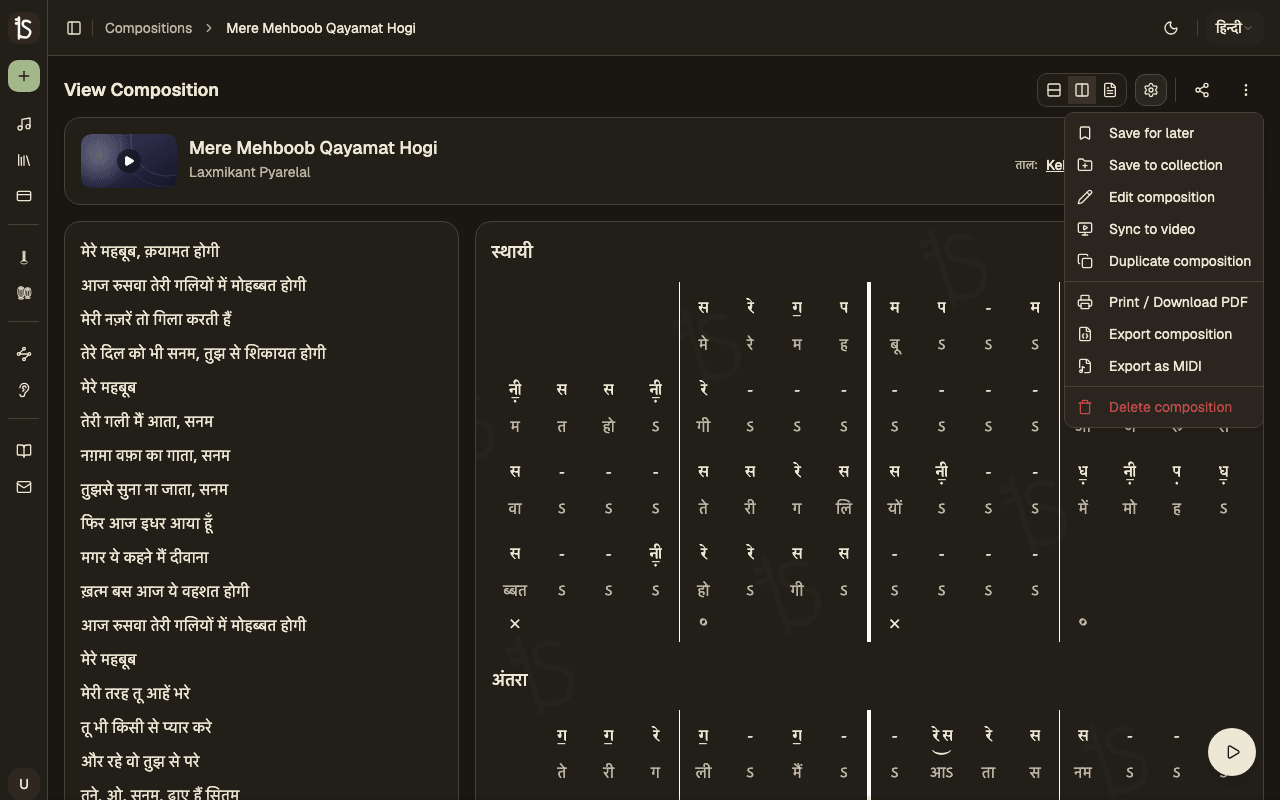
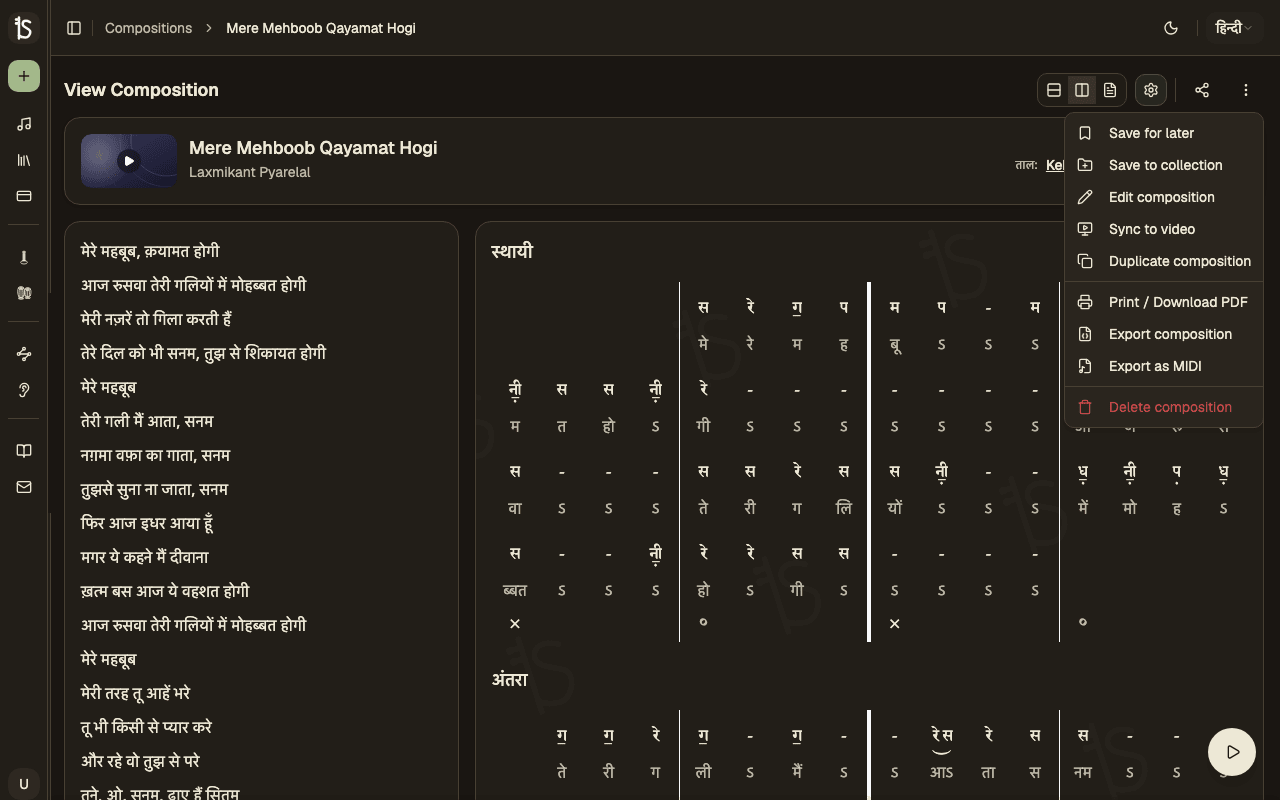
Share Link
Share your composition via link using the browser's native share dialog. Works on mobile and desktop.
Print / PDF
Print your notation or save it as a PDF. The print layout is optimized for readability with proper formatting.
Export MIDI
Export as a MIDI file for use in music production software like GarageBand, Logic Pro, or FL Studio.
Download JSON
Download the raw composition data as JSON for backup or transfer between accounts.
Save for Later
Bookmark compositions to your "Saved" library for quick access later.
On Mobile
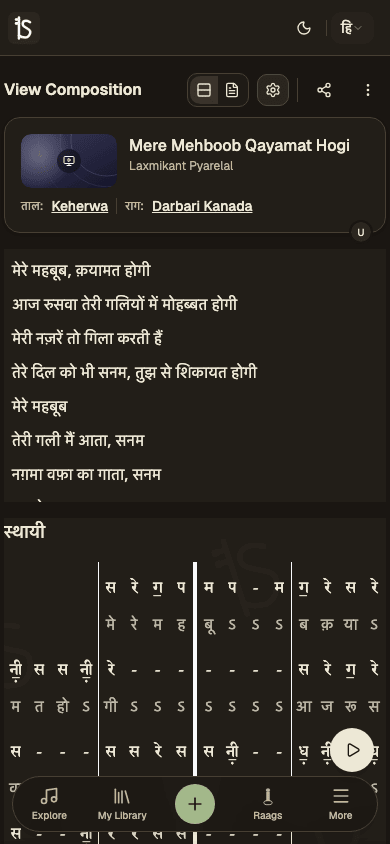
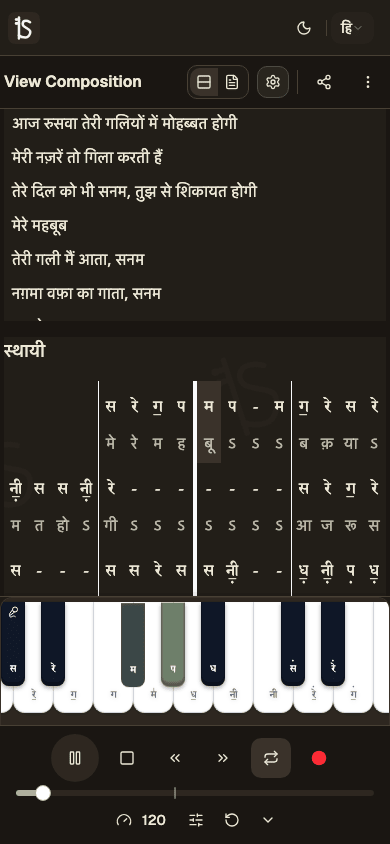
The full editor and player are optimized for phones — with a bottom tab bar, an inline piano keyboard, and swipe gestures.
Bottom tab bar
Explore, My Library, Pricing, and More are always one tap away — the desktop sidebar becomes a persistent tab bar on phones.
Inline piano keyboard
Tap any key to hear the note at your chosen scale. Use the keyboard to audition pitches while editing without opening the full player.
Swipe to open options
Swipe left on any row or composition card to reveal quick actions — save, share, duplicate, or delete without leaving the list.
Edit anywhere
The notation editor is fully touch-optimized — add rows, pick notes, and reorder sections the same way you would on desktop.
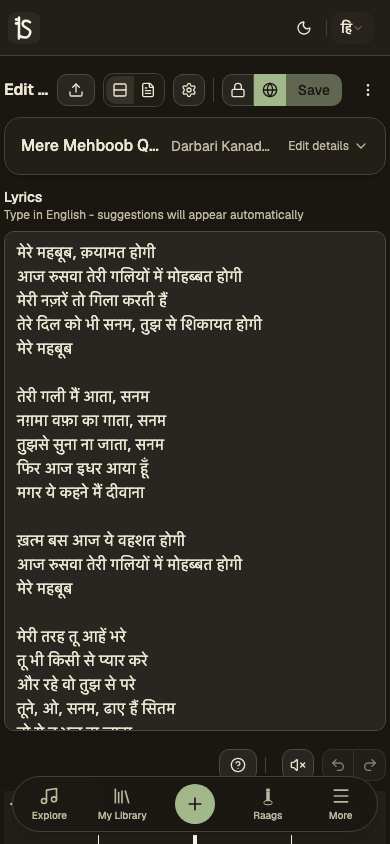
Custom mobile keyboards
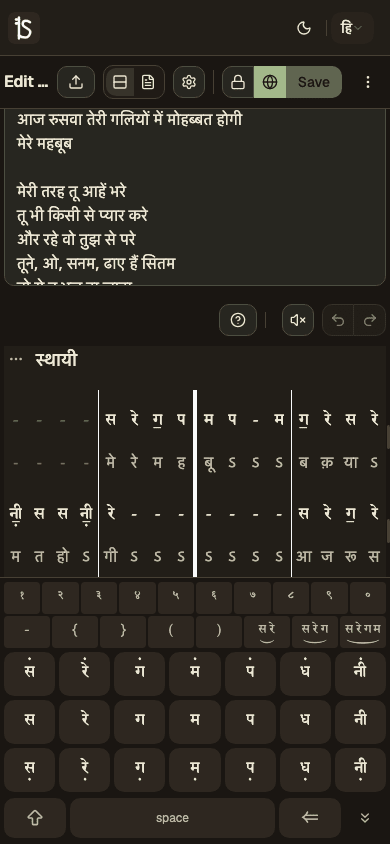
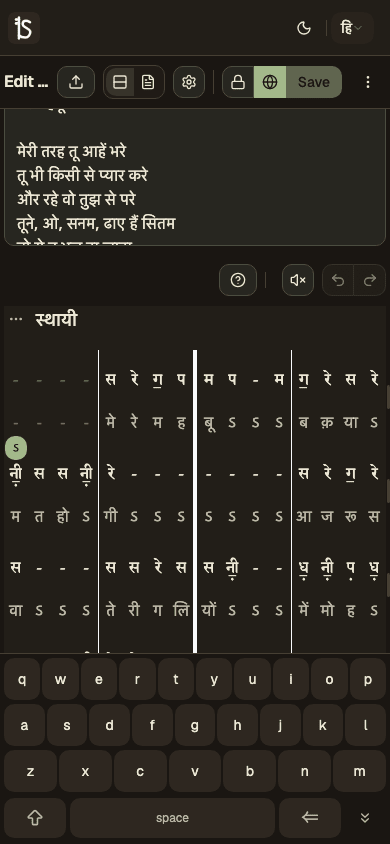
Tap a notation cell and a purpose-built keyboard slides up from the bottom — no system keyboard interference. The notes keyboard shows Bhatkhande swaras with octave and komal/tivra variants. The lyrics keyboard uses your regular device keyboard so you can type phonetic English and pick transliterations.
Language & Theme
Switch notation scripts and customize the look and feel of the app.
Language Selector
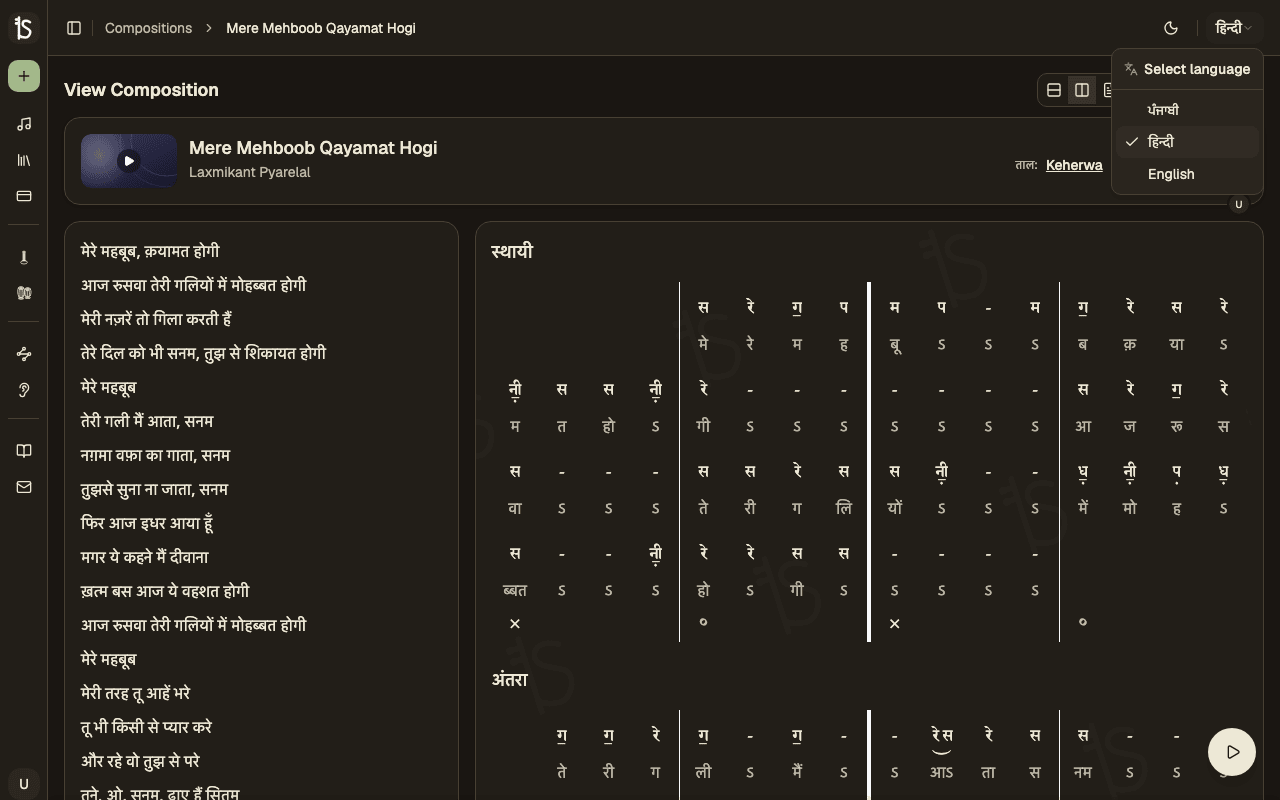
Switch between notation scripts: Hindi (Devanagari), English (Latin), Punjabi (Gurmukhi), and Bangla. The notation font changes to match your selected language, and lyrics are transliterated into it — this is a reading preference only, so it never alters a composition's stored lyrics.
Theme Toggle
Choose between Light, Dark, or System theme. The app respects your operating system's preference when set to System.
Language Selector
Settings
Set your preferences once and they apply everywhere — appearance, notation display, and playback.
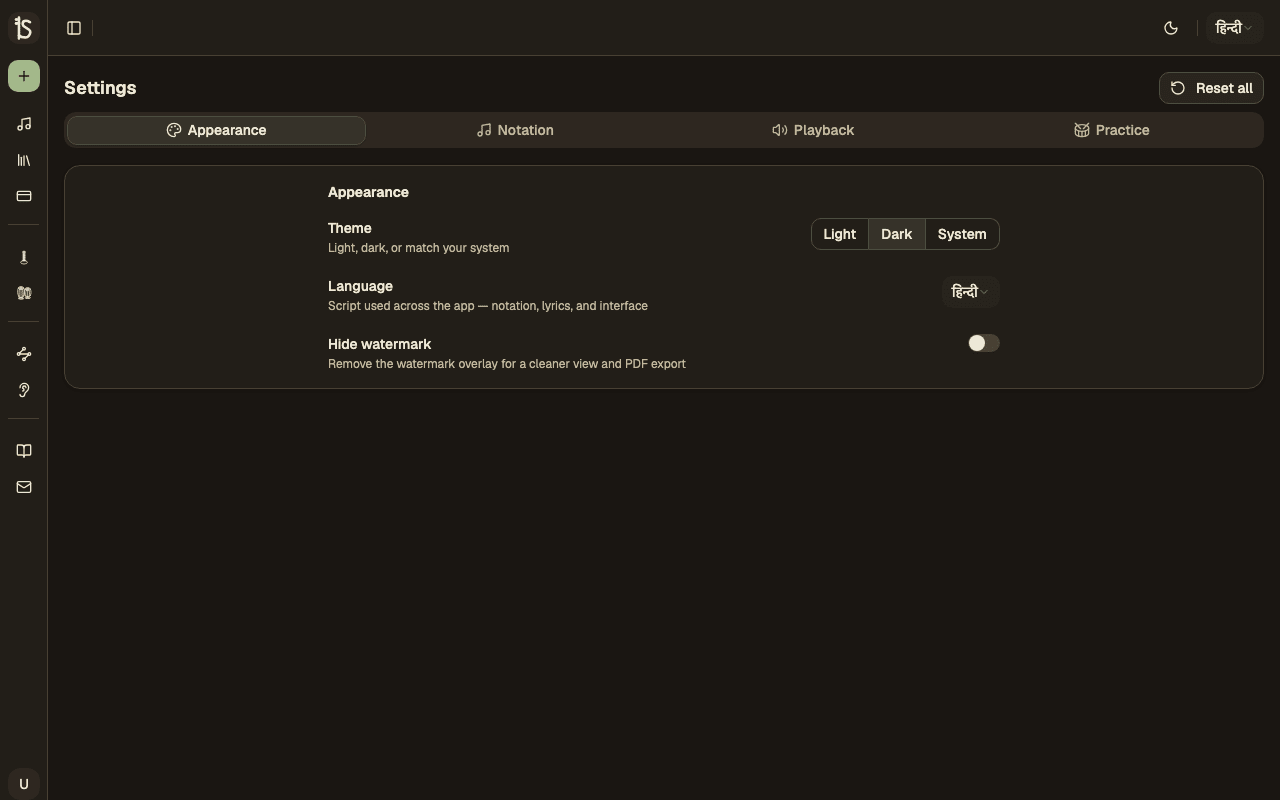
Appearance
Choose light, dark, or system theme, set your interface language, and hide the watermark for a cleaner view.
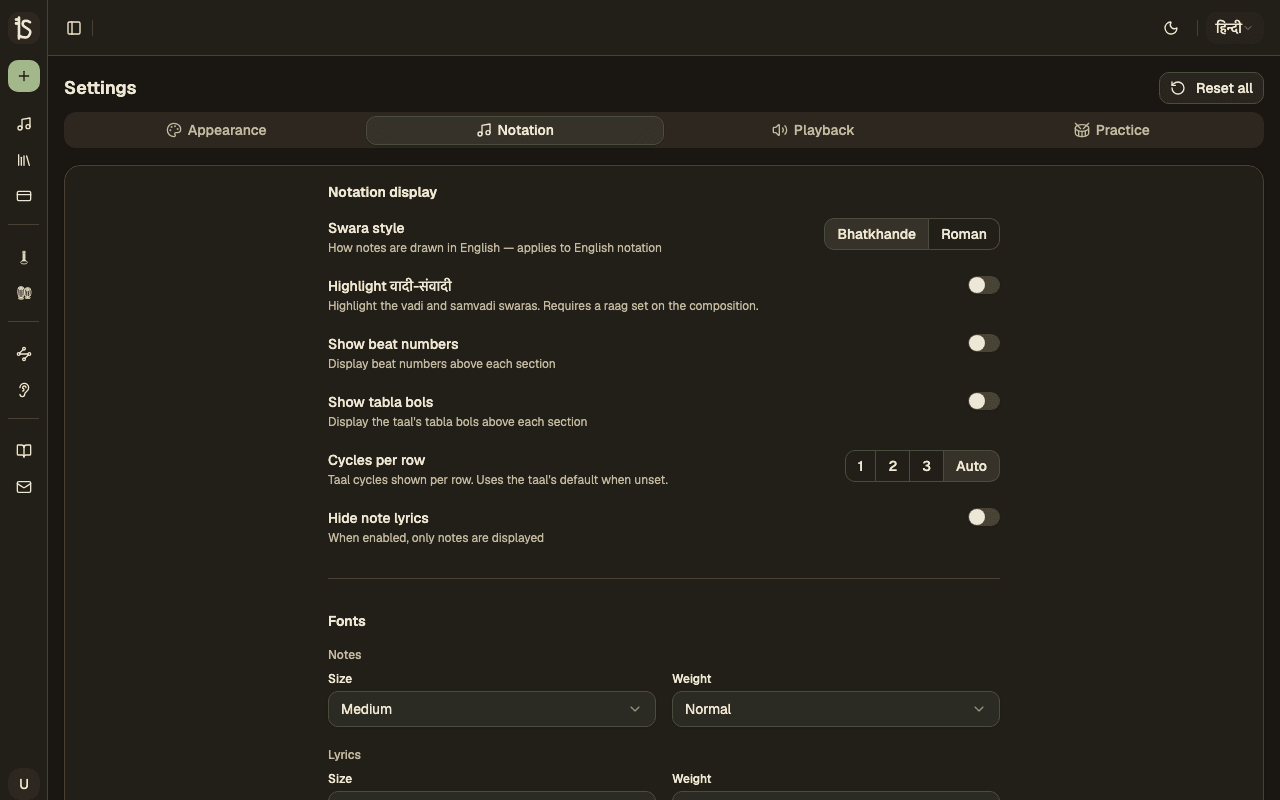
Notation
Your notation display preferences — font size and weight, cycles per row, and visibility toggles — apply across every composition.
Playback
Set your default instrument and the base Sa and scale used when you play a composition back.
Practice
Default tabla and tanpura accompaniment, and connect a MIDI keyboard for note entry and free play.
Global Notation Preferences
The Notation tab holds the same display controls you'll find on a composition, but as defaults — set them once here and every composition you open respects them.
Pricing
Choose the plan that fits your Sangeet notation needs.

Free
Create and view compositions with basic features. Limited private compositions, basic editor, preview playback with tabla and tanpura, no exports.
Pro
Unlimited compositions, audio player, transposition, Vadi/Samvadi highlighting, PDF/JSON downloads, and save for later.
Pro+
Everything in Pro, plus multiple instruments, collections, MIDI keyboard input, watermark-free PDFs, and MIDI export.
Pro & Pro+ Features
Features reserved for Pro and Pro+ plans show a prompt when accessed on the Free plan, making it easy to upgrade when you need more.